Human-in-the-loop AI for sales: agents prepare the work, and your team sees what is ready, what needs a decision and who owns the next step. Nothing important goes out without a person.
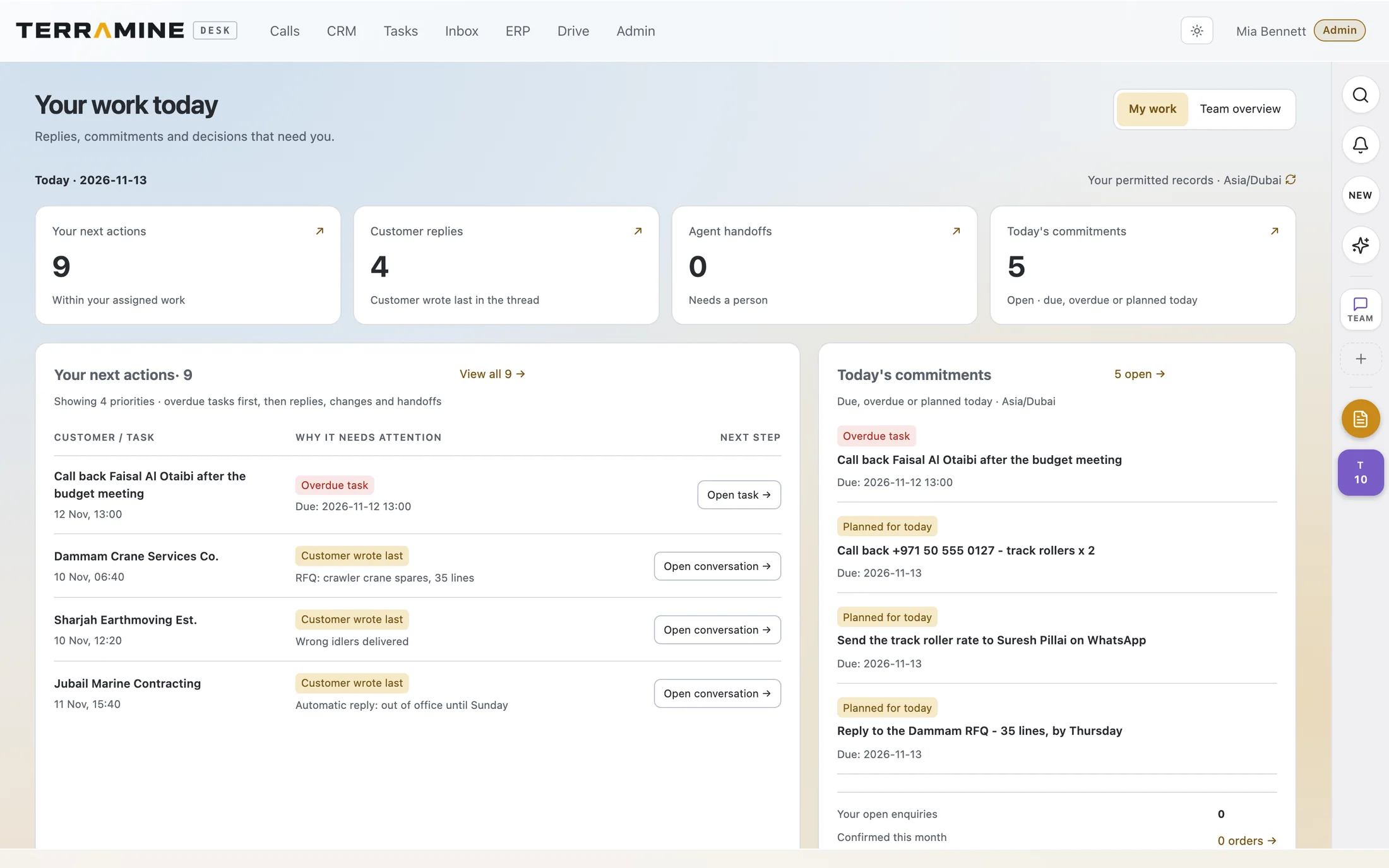
Home switches between your own next actions, customer replies and today’s commitments, and a team overview of results and the decisions holding work up.
Screenshots from the product, at the version captured at the time. The interactive demo is a simplified guided example, not a copy of every screen.
Inside the product
AI prepares. People decide.
See where your team reviews and approves what the agents prepared. Every picture is cut from the actual product, with fictional demo data.
01 · Home
Start with the work that needs you.
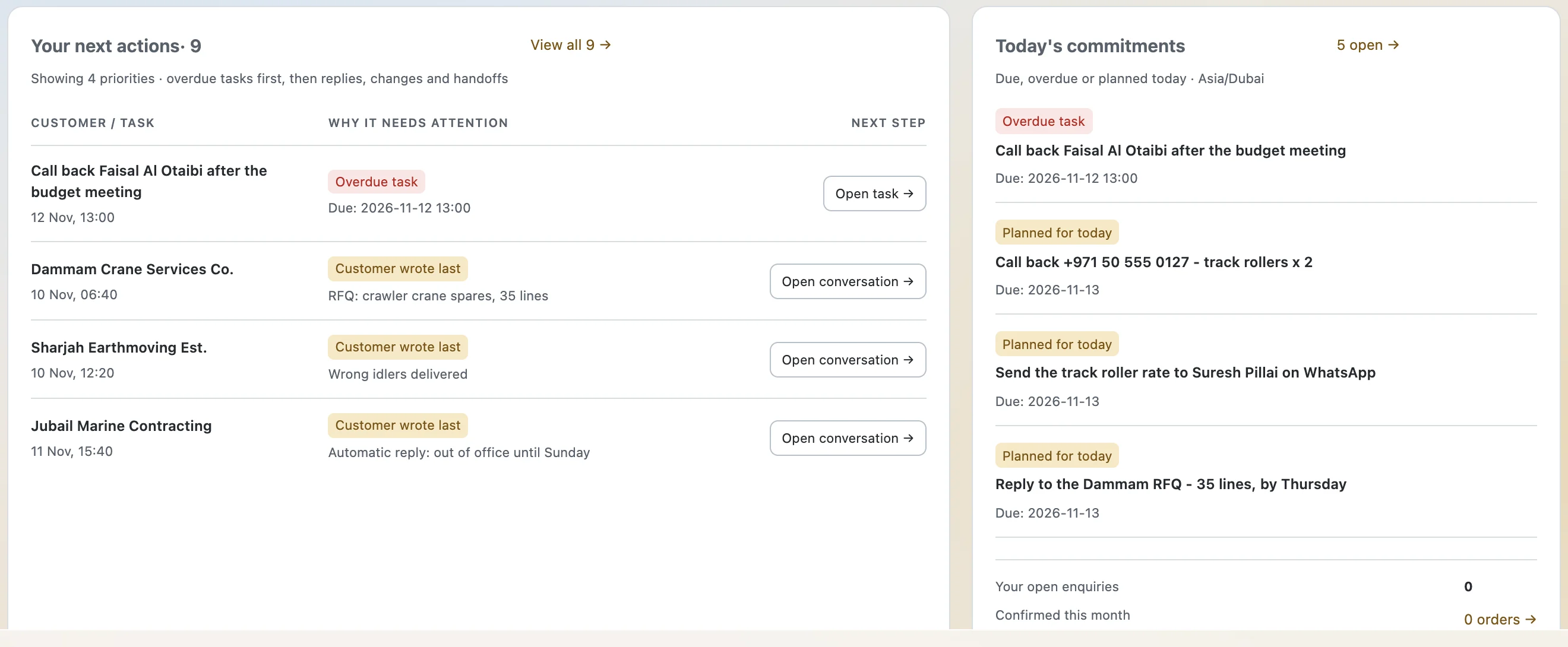
Home counts your next actions, customer replies, agent handoffs and today's commitments, then lists them in order: overdue tasks first, then replies and handoffs, each with its next step.
My work and a Team overview on one screen
Why each item needs attention, in words
Open the task or the conversation in one click
Shows only the records your role may see
Next actions, customer replies, agent handoffs, commitmentsYour next actions and today's commitments
02 · Approval
The assistant proposes a plan. You approve it.
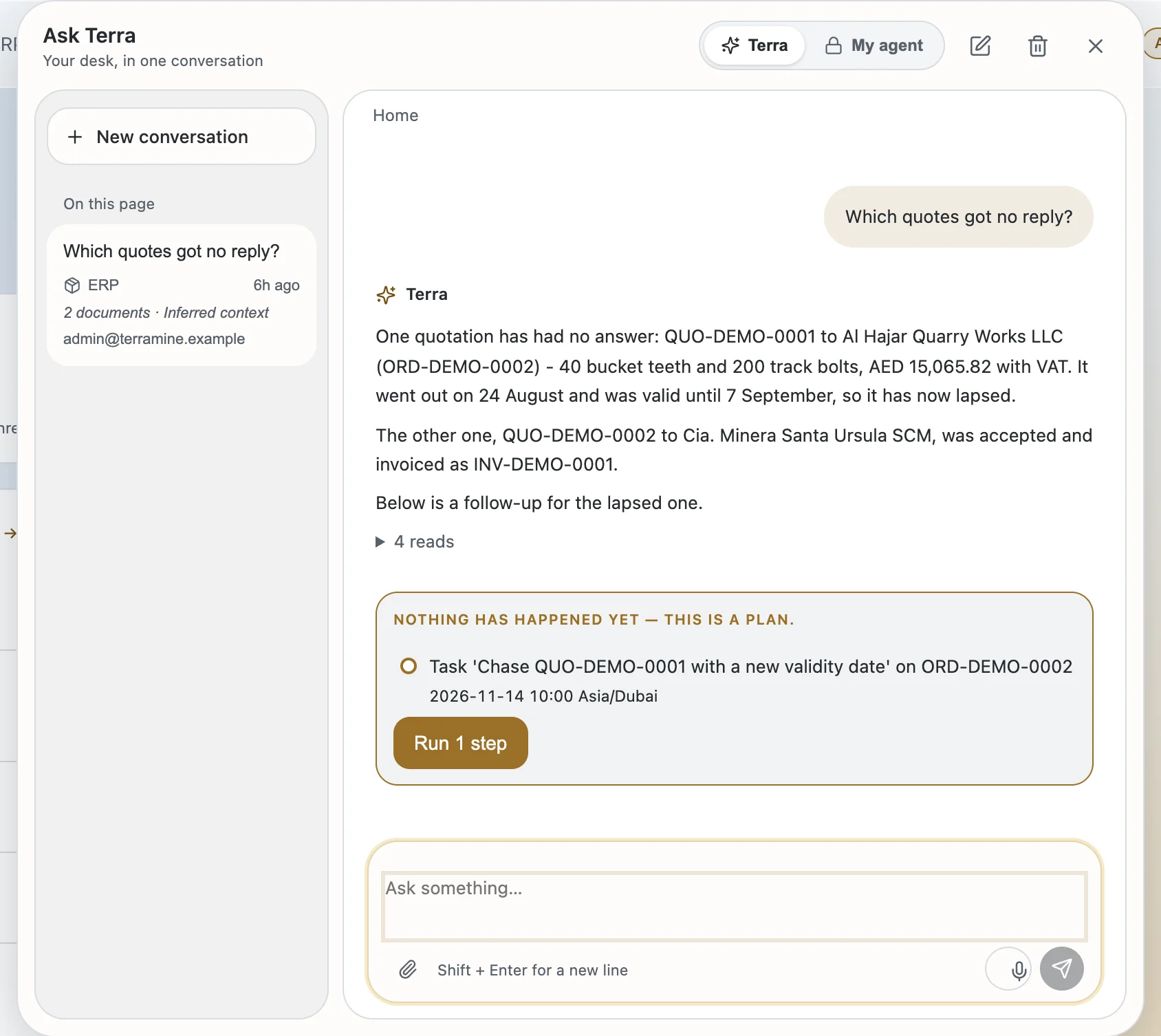
Ask Desk answers from your records and shows its working. When you ask for a change, it writes a plan of actions to tick and run, so you review what will happen before it does.
Reviewable action plans instead of silent changes
Answers that name their sources
Works on the record you have open
Every change and refusal kept in the audit history
A proposed plan to review before it runs
03 · Operating rules
Your team sets how the agents work.
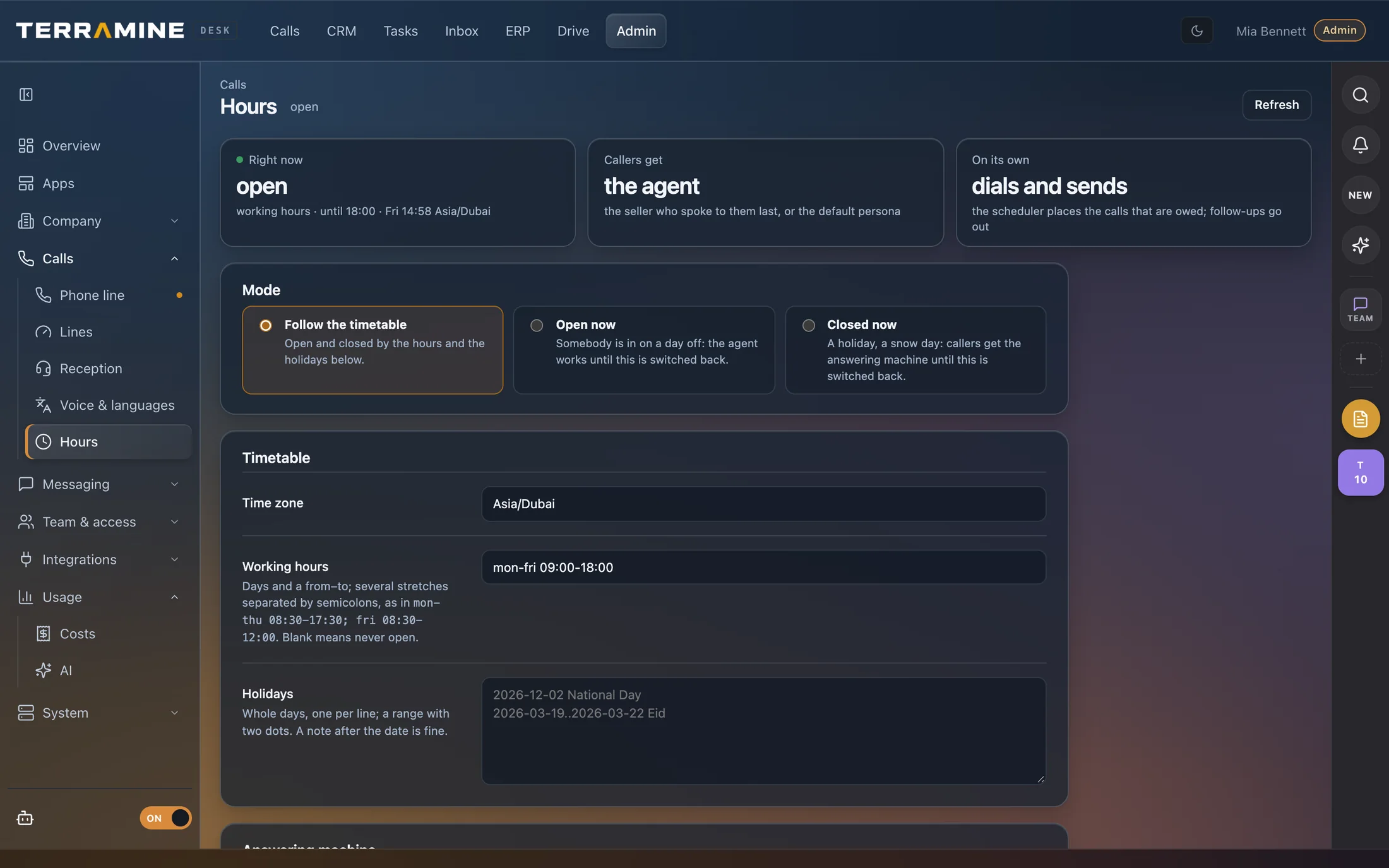
Administrators set office hours, the answering message, voices and languages, who may see which customers and which automations are on.
Role-based access to rooms and customer records
Office hours, holidays and time zone
Autopilot switched on per order or per chat
Do-not-call rules respected by every agent
Operating mode: timetable, open now or closed now
04 · Usage
See what the AI costs.
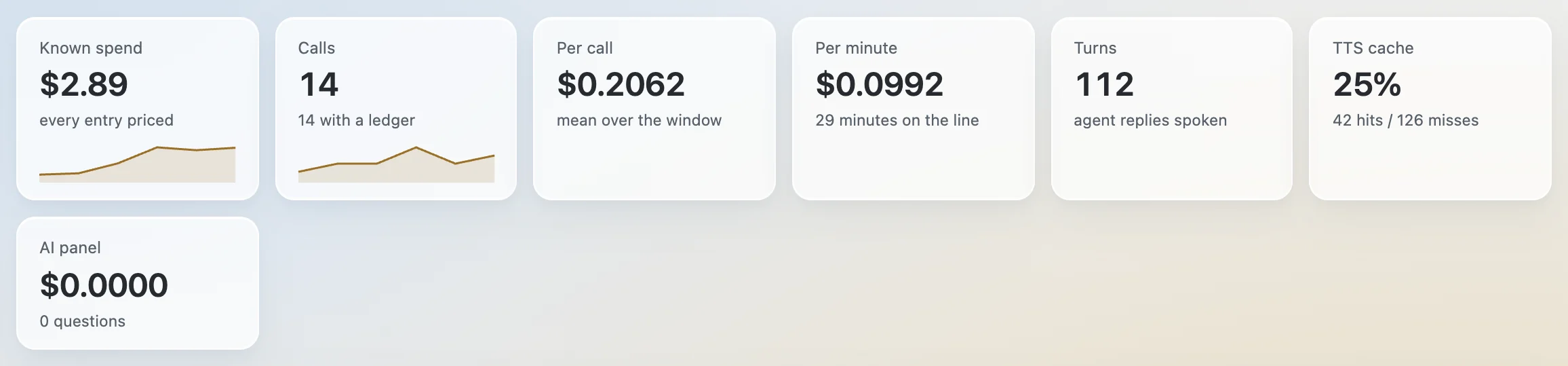
A usage report shows what calls and AI work cost for the period, by service and by person, so spending is reviewed with the same care as the work.
AI usage and cost by service
Usage by user
Reviewed in your proposal's allowances
Health checks for every connected service
Usage and cost for the period
Where it fits
Clear review points for AI-assisted work
Review quotations and their covering emails in ERP before sending. When a price differs from a previous quotation, or a line sells at or below cost, the product asks you to resolve those price questions first. Ask Desk shows a plan for actions such as sending or dialling, and waits for you to confirm.
Work through conversation
Your workspace, one conversation away.
Chat with Terramine Desk to find information, understand what's happening and get work done across CRM, calls, email, orders and tasks.
Built-in tools connect the AI to your workspace records and actions. Ask in your own words: the assistant can look up information, bring the context together and prepare changes for your approval.
Review proposed plans before confirming. Small edits to the open record can apply immediately; enabled automation follows its configured rules.
The sample quote is prepared from the order. A person checks quantities, prices and delivery wording before sending it from the quotation email window.
Stay informed. Review the work. Own the next step.
01
Quotation review in ERP
Review the document and covering email, resolve price exceptions when prompted, then send or save an email draft.
02
Activity history
Trace the steps from the original request to a changed quantity or reviewed offer.
03
Responsibilities in view
See which parts of the work belong to the agent, sales or operations.
04
User roles
Configure access around team responsibilities in the production workspace.
05
Call review
Use the transcript and summary to understand what was actually discussed.
06
Your work or the team's
Home switches between your own next actions and a team overview of enquiries, sent quotations, confirmed orders and the decisions holding work up, within your access.
07
A bell for what is new
The bell keeps only what you have not seen. Needs you holds work still waiting for you, and All keeps 90 days with search. What's new explains each product update in plain words.
08
Your own private agent (beta)
A My agent tab beside the team assistant works with your personal mailbox and personal tasks, each behind its own switch. Nobody else sees its conversations or memory, not even an administrator. Nothing is sent until you press Send.
09
Native Android and iOS apps
Keep your workspace close on Android and iPhone. Look up customers, manage tasks and read your inbox. Ask Desk a question or dictate it while you are away from your computer. On a dedicated deployment, the apps also review calls. Both apps read in the language you chose for the desk.
10
Telegram chat updates
Follow calls, incoming email, supplier requests, quotations and task activity in your team's Telegram group. See who acted and when a person needs to step in, with topics to keep busy conversations organised.
11
Chat with Ask Desk in Telegram
Ask about customers, calls, orders or tasks directly in Telegram. Continue the conversation with follow-up questions and review proposed actions before choosing to run them.
Before you try it
Questions about human approval for AI workflows
What does human in the loop mean here?
Review happens where the work is done: in ERP for quotations and price exceptions, in Inbox for letters, and in Ask Desk for proposed actions. There is no separate central quotation-approval queue.
Can I use Terramine Desk on Android or iPhone?
Yes. Native Android and iOS apps sign in to your Terramine Desk workspace with a code from your screen. Look up customers, manage tasks, read your inbox and open orders and documents. Ask Desk is there too. On a dedicated deployment, the apps also review calls.
What updates can we receive in Telegram?
Once configured, the bot posts work updates to your team's Telegram group. These include calls, email, supplier requests, quotations and task changes, with notices when a person needs to act. Groups with topics can separate incoming calls, outgoing calls, email, ERP, tasks and operational alerts.
Can I chat with Ask Desk in Telegram?
Yes. With Telegram chat enabled, you can ask questions in your team's group or in a private chat linked to your workspace account. In the group, mention the bot, use /ask or reply to one of its messages. Ask follow-up questions in the same conversation. When Ask Desk proposes an action, it shows a plan for you to review and decide whether to run.
Can I choose my personal Telegram notifications?
Yes. Link your Telegram account to your workspace account and choose updates about your customers, your own activity, tasks and reminders. Wider personal feeds need an administrator to grant them, within what your workspace access allows. The shared team group has its own audience and settings.
Does the demo expose internal instructions?
No. It shows one customer-facing workflow with fictional data. Private prompts and operating rules are not part of the demo.
Will this send a real quotation?
No. Sending in the demo records a sample message in your browser only.
Can this replace our internal policies?
No. Your pilot should define responsibilities, approval points and operating rules for your business.
Your process comes next
Start with one workflow. Connect the work from there.
We'd like to use Google Analytics cookies to count visits and see which pages are read. Nothing is set until you choose, and the site works the same either way. Privacy notice