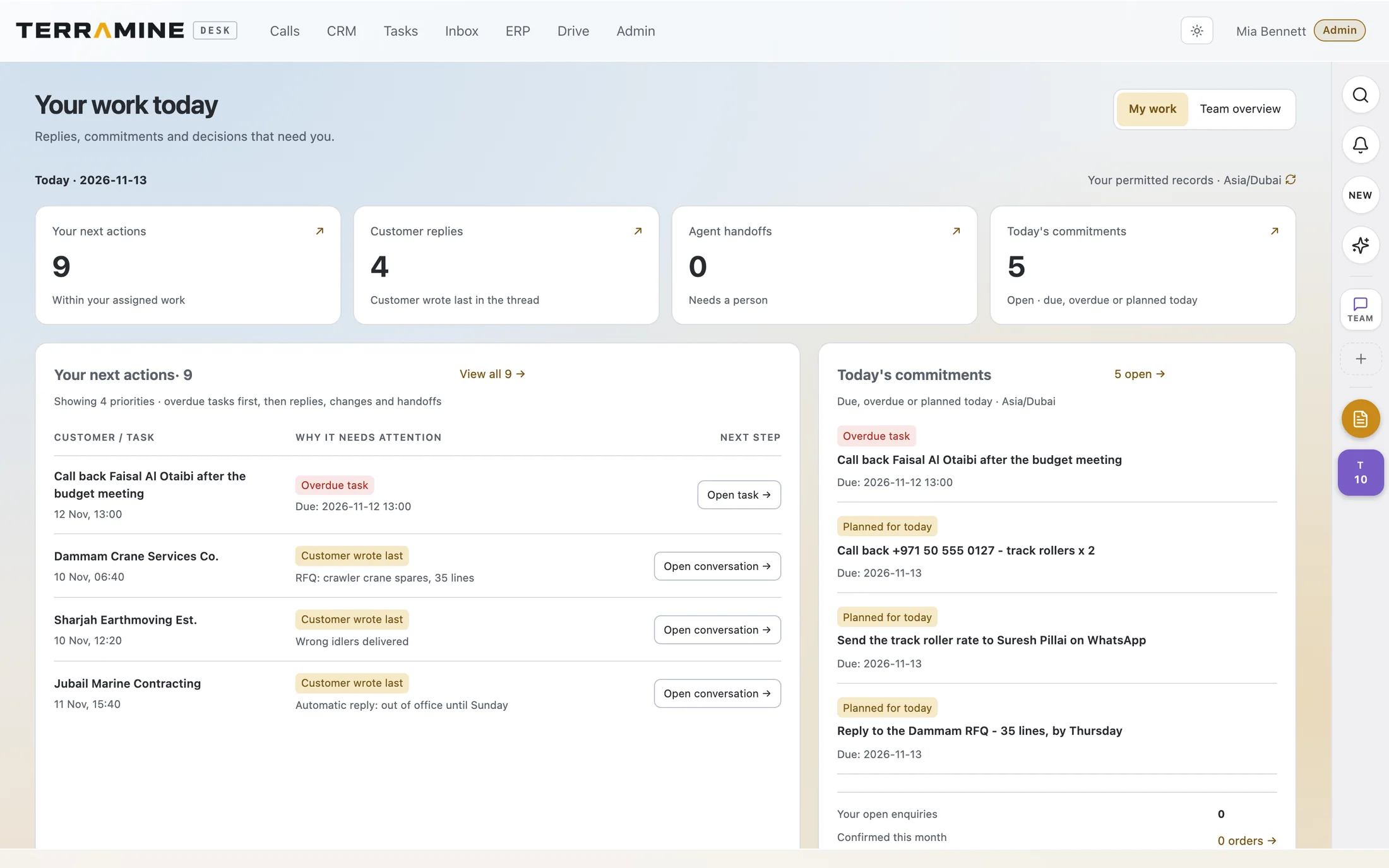
Your catalogues and rules, where the assistant can read them.
Folders for your company's files. An administrator chooses which folders the assistant searches as Knowledge, which pages are pinned into every answer, and which are simply kept. In beta.
Screenshots from the product, at the version captured at the time. The interactive demo is a simplified guided example, not a copy of every screen.
Inside the product
The foundation under every room.
See the parts every team shares. Every picture is cut from the actual product, with fictional demo data.
01 · Drive
Company files the AI assistant can read.
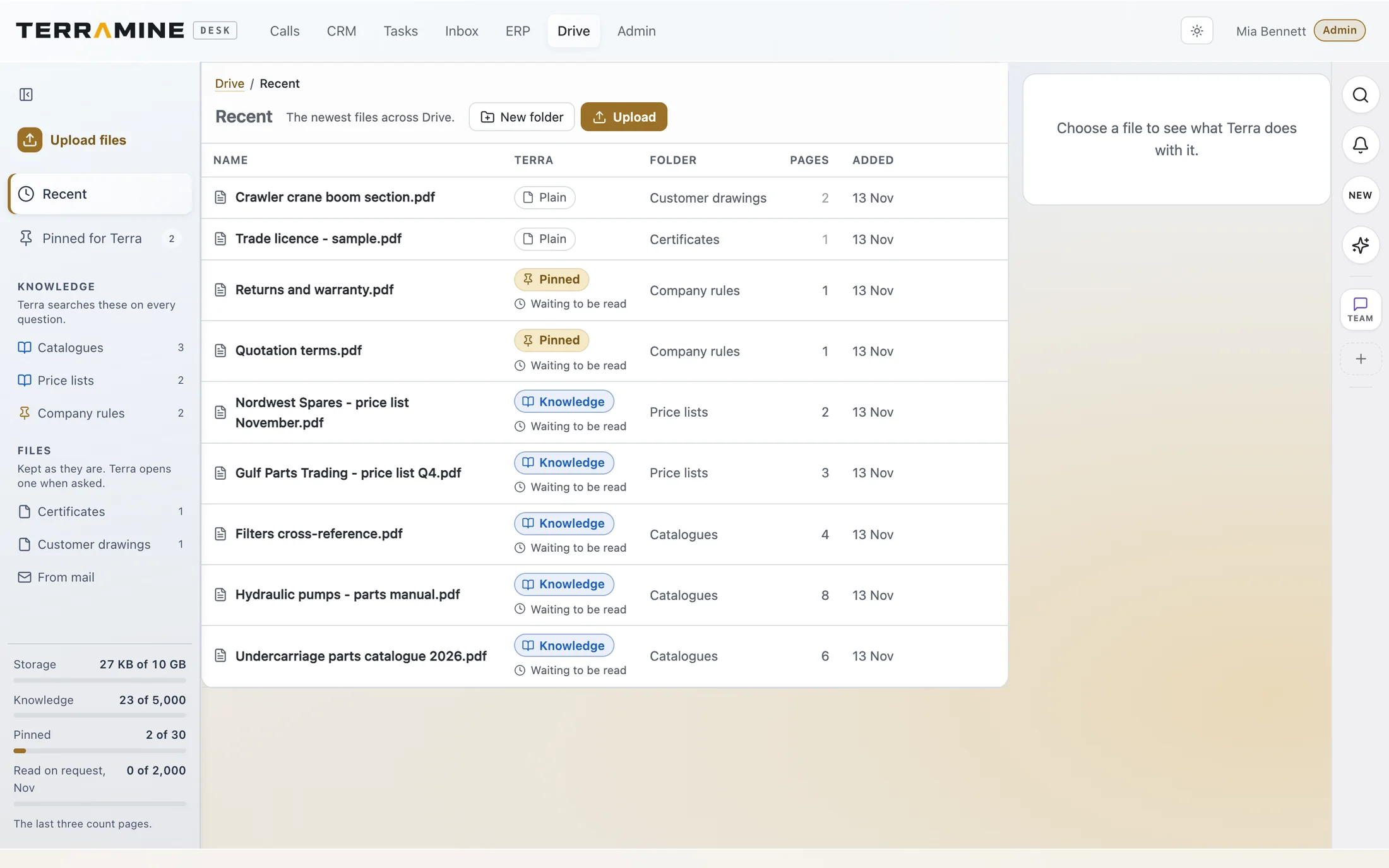
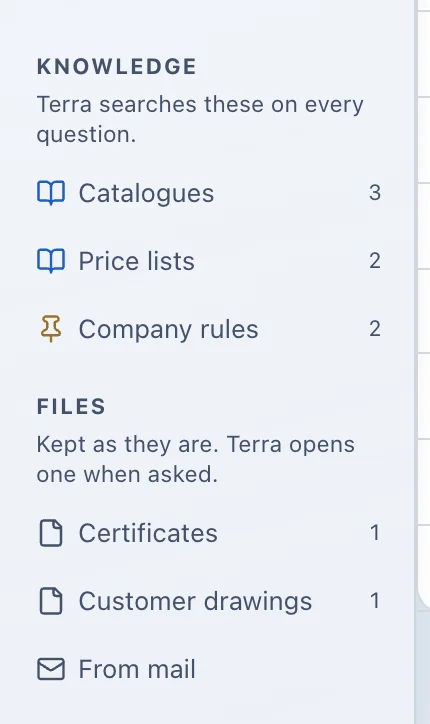
Drive keeps catalogues, price lists and company rules in folders. An administrator marks a folder as Knowledge and the assistant searches it on every question, by part number and by word, and names the file and the page in its answer. In beta.
AI knowledge base from your own PDFs and spreadsheets
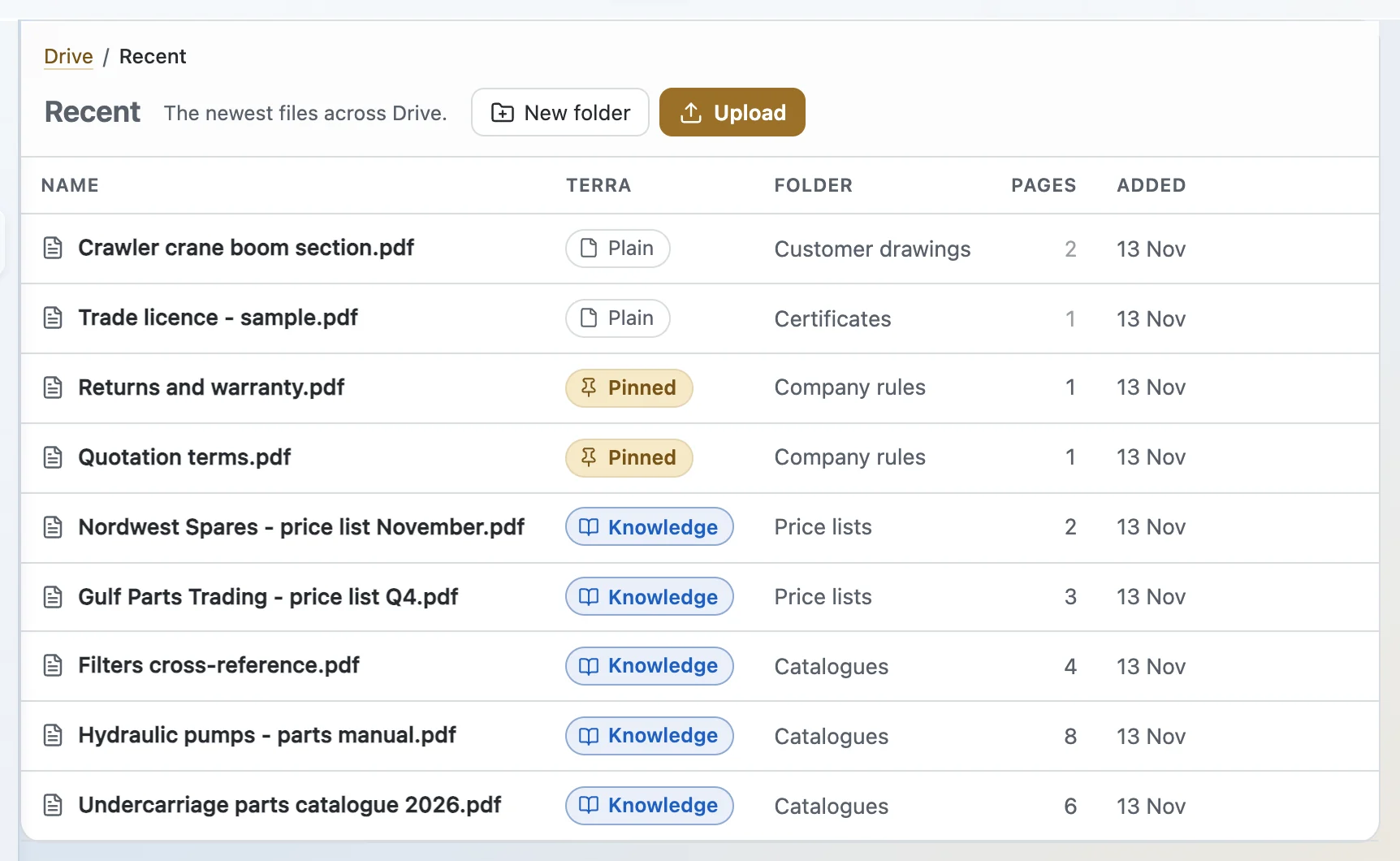
Pinned pages go into every answer
Plain folders are simply kept
Attach a Drive file to an email, a chat, a task or an order
Knowledge, pinned and plain foldersFiles marked Knowledge, Pinned or Plain
02 · Ask Desk
One assistant across CRM, ERP, calls and tasks.
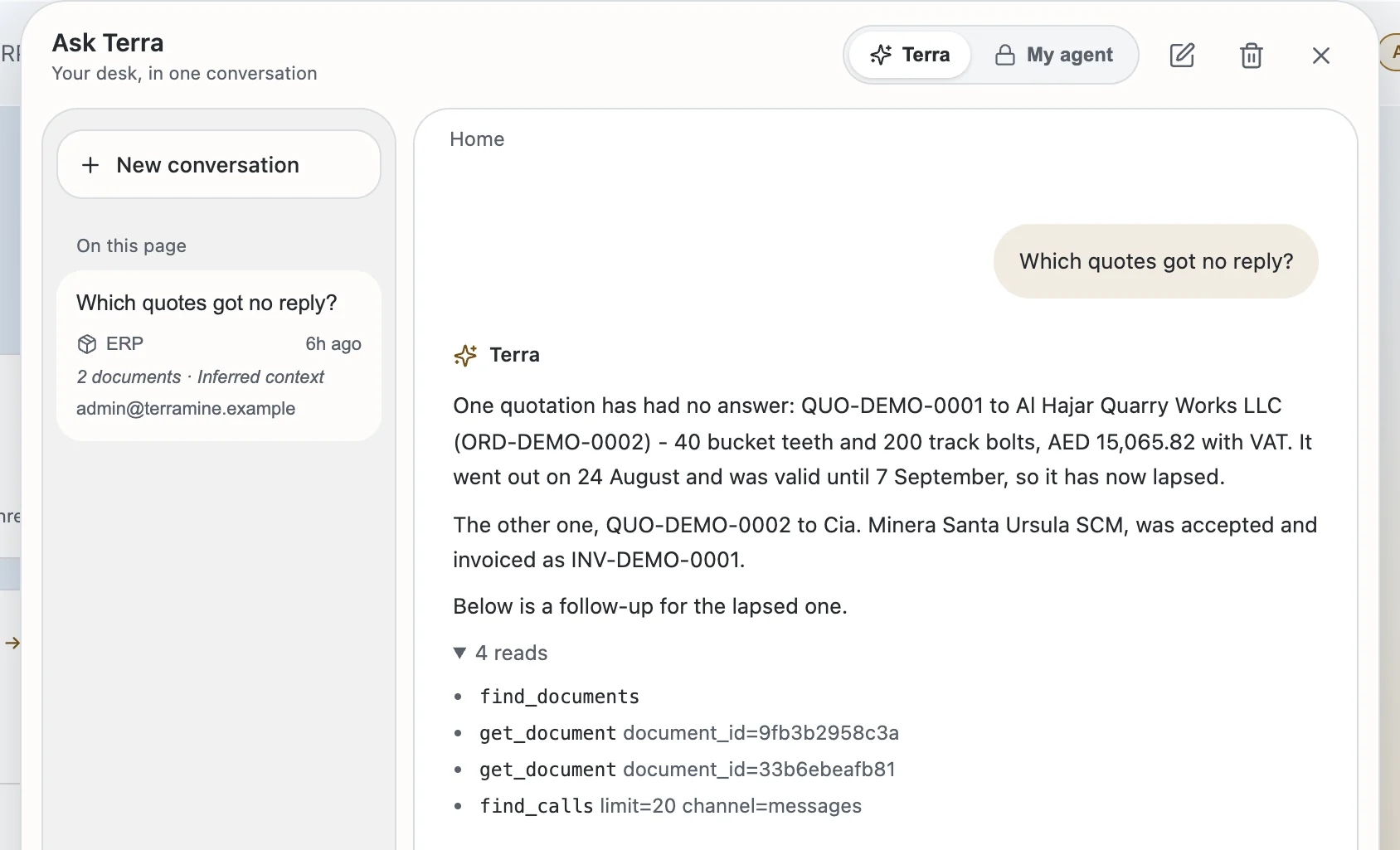
Ask Desk answers questions about customers, orders, calls and stock from your own records, and shows what it read to get there.
AI assistant for CRM and ERP data
Answers with their sources
Proposes actions for your approval
Works by typing or by voice
Ask Desk: an answer with the records it read
03 · Allowances
Storage and AI reading, in plain numbers.
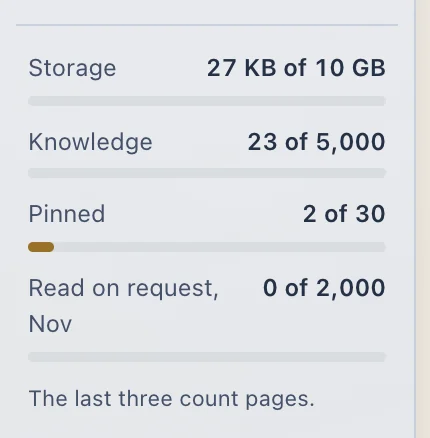
Each workspace sees its storage, Knowledge pages and pinned pages against what is included, so nobody is surprised by a limit.
10 GB of storage included
5,000 Knowledge pages and 30 pinned pages
Reading on request counted per month
Shown to administrators in Drive
Storage and Knowledge allowances
Work through conversation
Your workspace, one conversation away.
Chat with Terramine Desk to find information, understand what's happening and get work done across CRM, calls, email, orders and tasks.
Built-in tools connect the AI to your workspace records and actions. Ask in your own words: the assistant can look up information, bring the context together and prepare changes for your approval.
Review proposed plans before confirming. Small edits to the open record can apply immediately; enabled automation follows its configured rules.
User roles, personal work and project visibility help the right people see the right records.
Deployment choices
Discuss a dedicated deployment, operational responsibilities and your data requirements while the pilot is scoped.
Integrations, with a clear status
Check the mail, telephony, accounting and other connectors against the services enabled for your deployment.
Drive, read by the assistant
Keep catalogues, price lists and company rules in folders. An administrator chooses what the assistant searches, and answers name the file and the page. In beta.
Each person's language
Everyone reads the workspace in English, Russian, Hindi, Korean, Arabic, Spanish, Portuguese, Chinese, French, German, Turkish, Indonesian, Vietnamese, Polish or Ukrainian. Emails, quotations and calls still go out in the customer's language.
Four looks
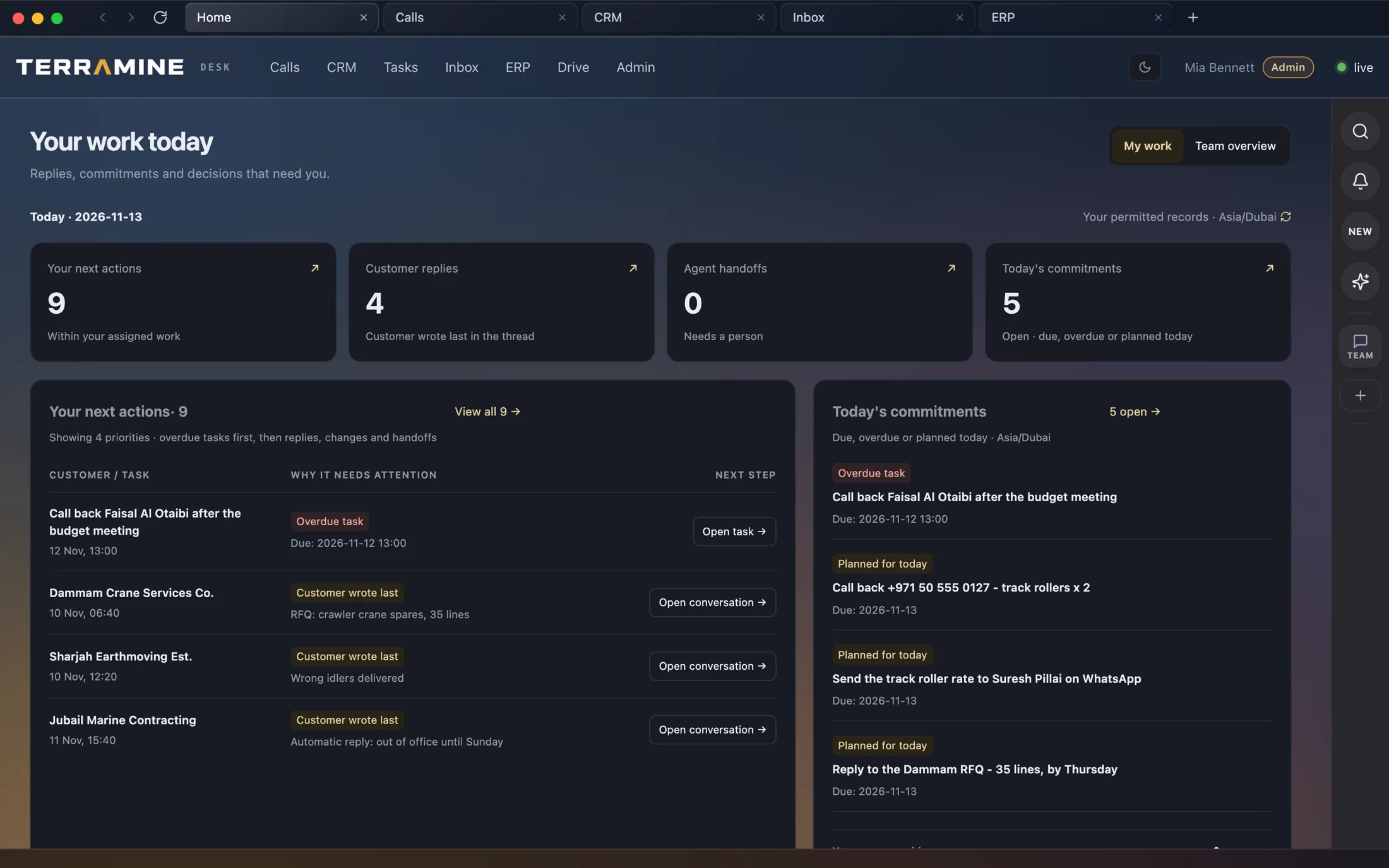
Glass, White, Black and Green, compact or comfortable. The company sets the starting look and each person can choose their own.
Terramine Desk for Android and iOS
Your desk, with you.
Keep customers, tasks and your inbox close. Our native Android and iPhone apps sign in to the same Terramine Desk workspace with a code from your screen.
Ask Desk is there too: ask a question or dictate it when you are away from your computer. On a dedicated deployment, the apps also review calls.
Look up customers, manage tasks and read your inbox. Open orders and documents, or ask Desk a question from your phone. The app reads in the language you chose for the desk: English and fourteen more, Arabic right to left.
On iPhone
Stay close to the same customers and work. Browse your inbox, review orders and documents, and ask Desk a question or dictate it. The app reads in the language you chose for the desk: English and fourteen more, Arabic right to left.
Inside the Android app
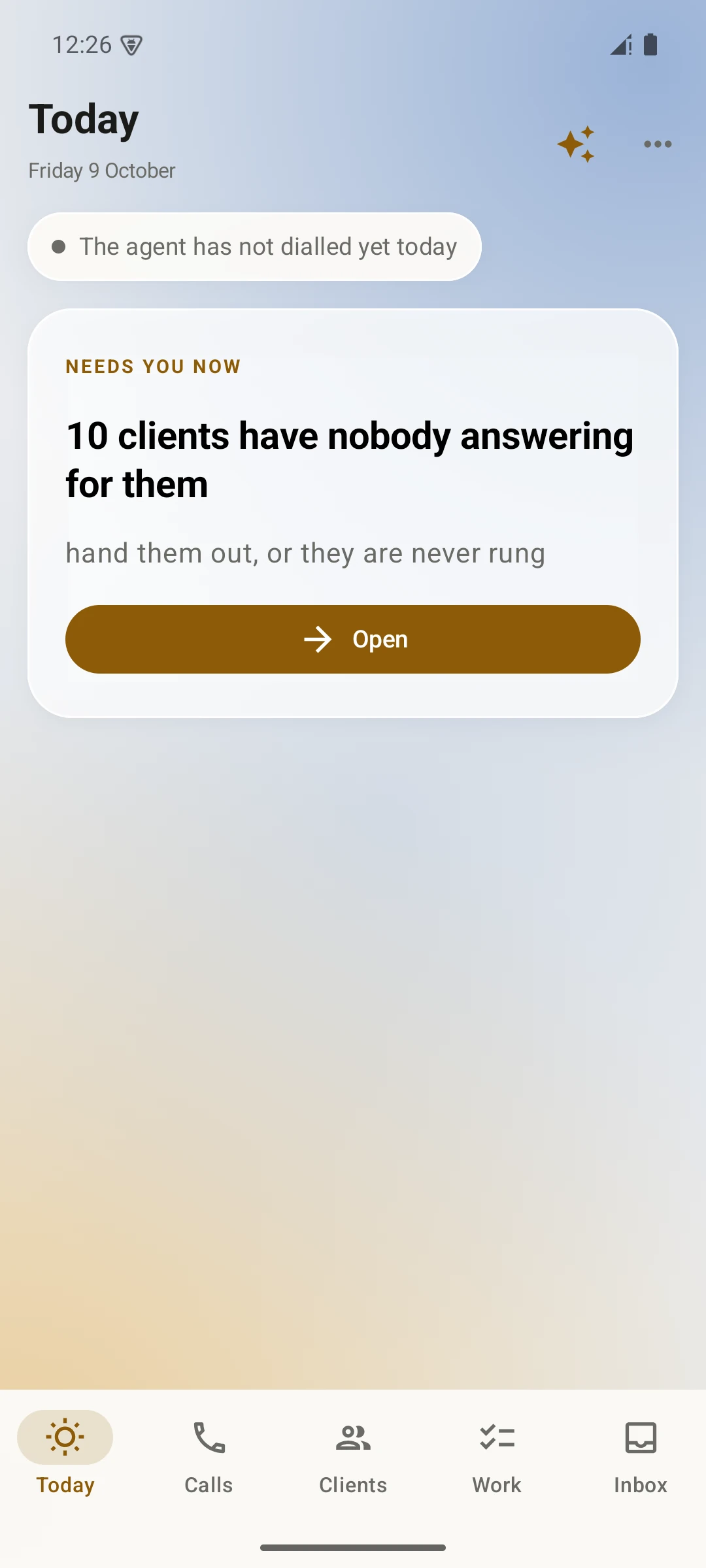
See what needs attention.
Review agent activity and account ownership from your daily overview.
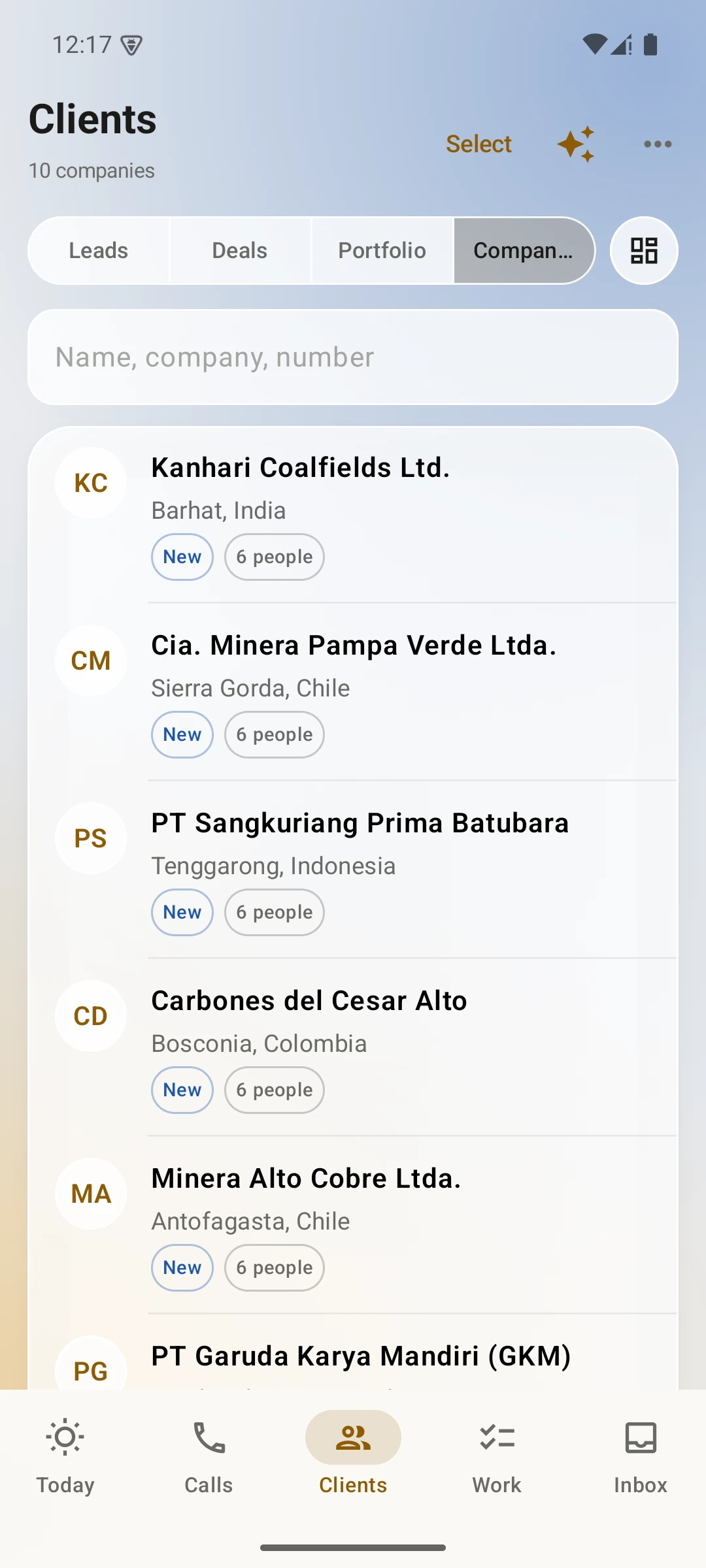
Find your customer context.
Browse companies and open their customer records from your phone.
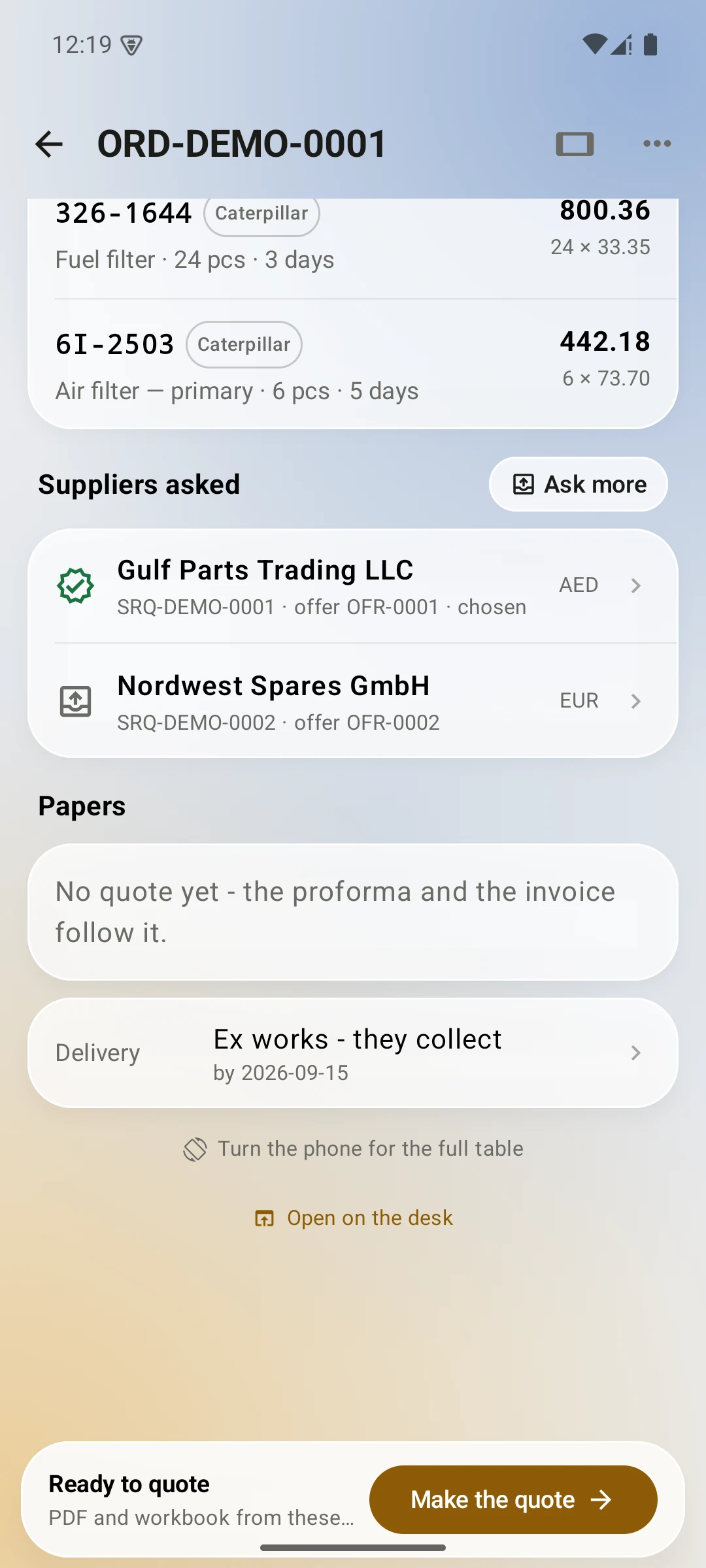
Keep the order moving.
Review line items, supplier offers and delivery details in a customer order.
Actual Android app screens with fictional demo data. Select a screen to enlarge.
Inside the iOS app
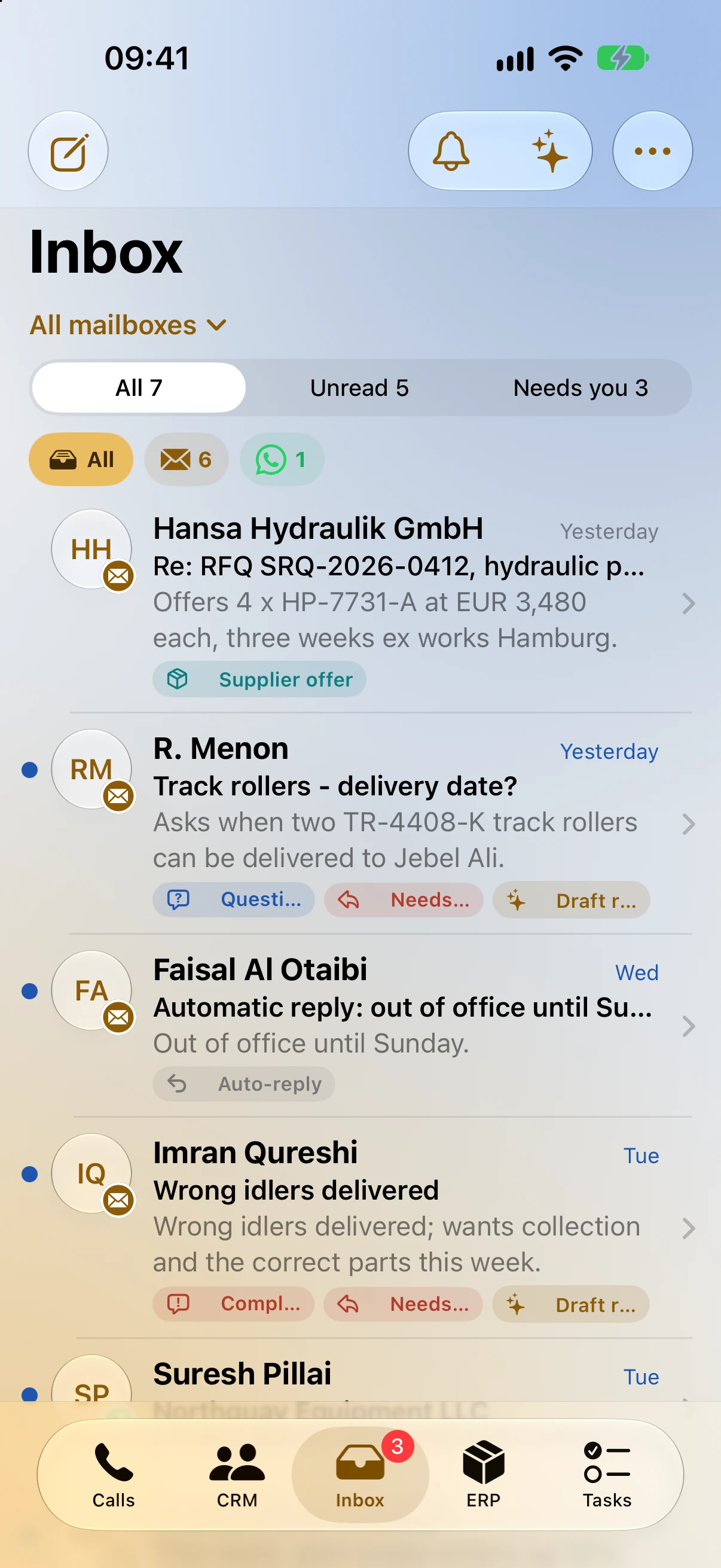
Email and chats in your pocket.
Read the shared Inbox with its AI summaries and labels, switch between email and WhatsApp, and see what needs you.
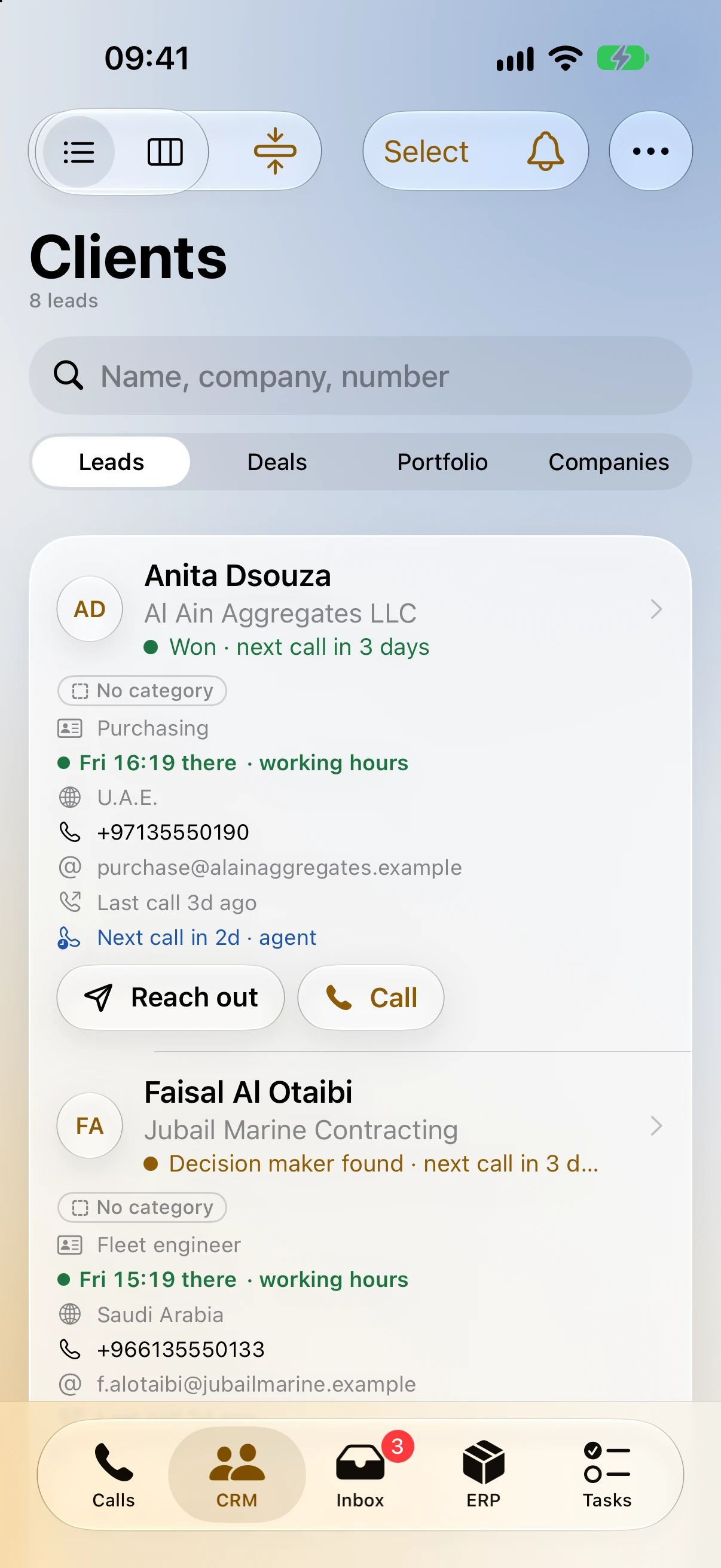
Keep customers close.
Find leads, deals and companies with their local time and next call, and call or write from the card.
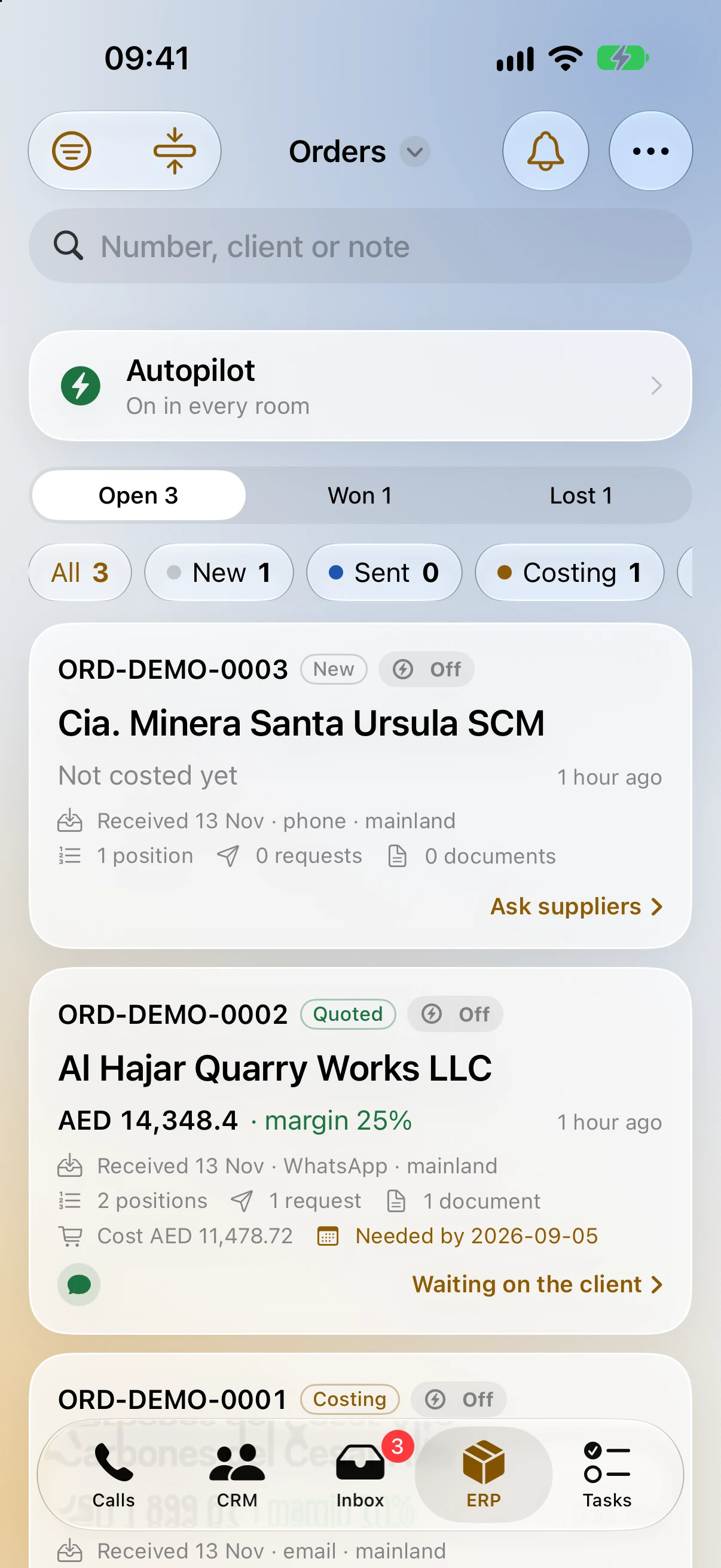
Follow every order.
See open orders with their stage, amount and margin, whether Autopilot is on, and the next step each one waits for.
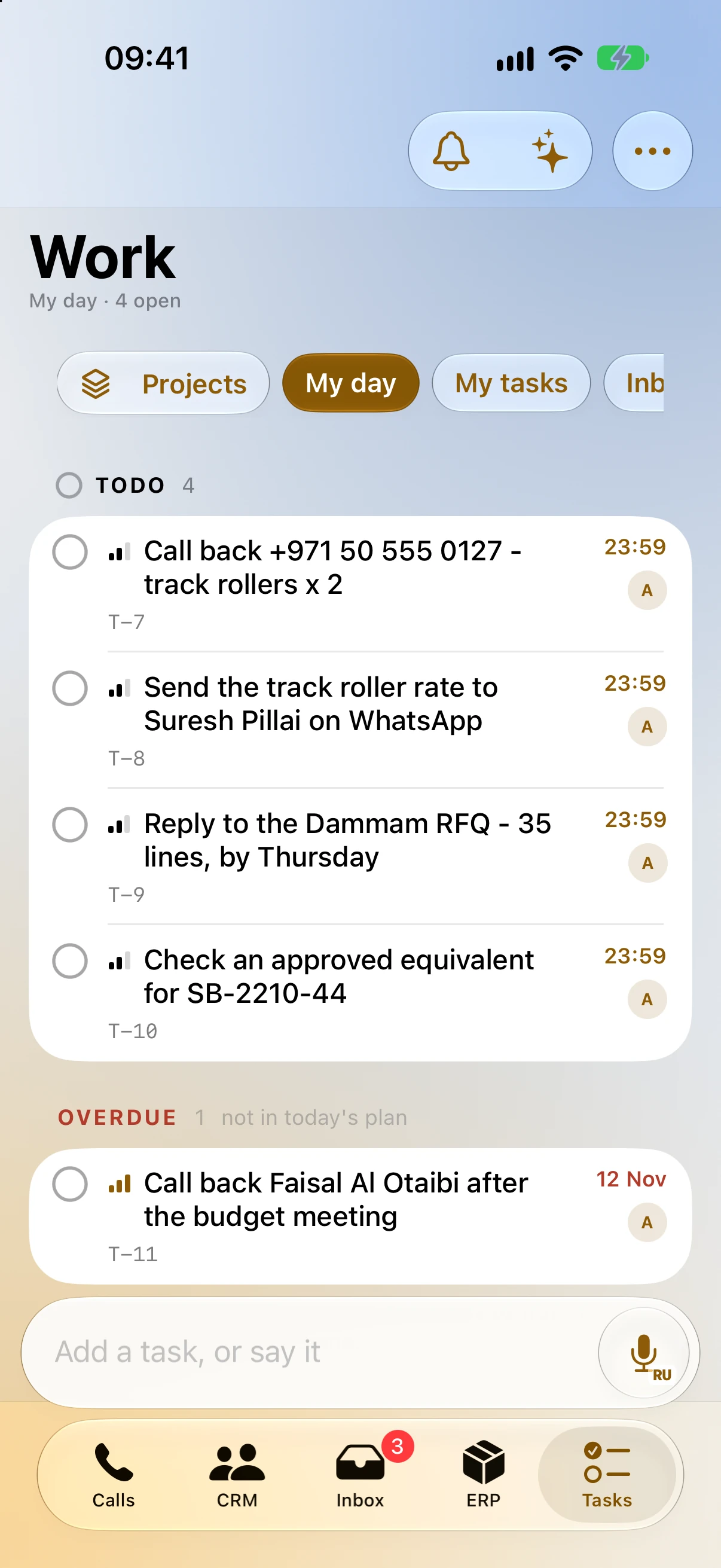
Move the day forward.
Check today's tasks and what is overdue, and add a task by typing or speaking.
Actual iOS app screens with fictional demo data. Select a screen to enlarge.
Terramine Desk for the Mac · beta
The desk, in a window of its own.
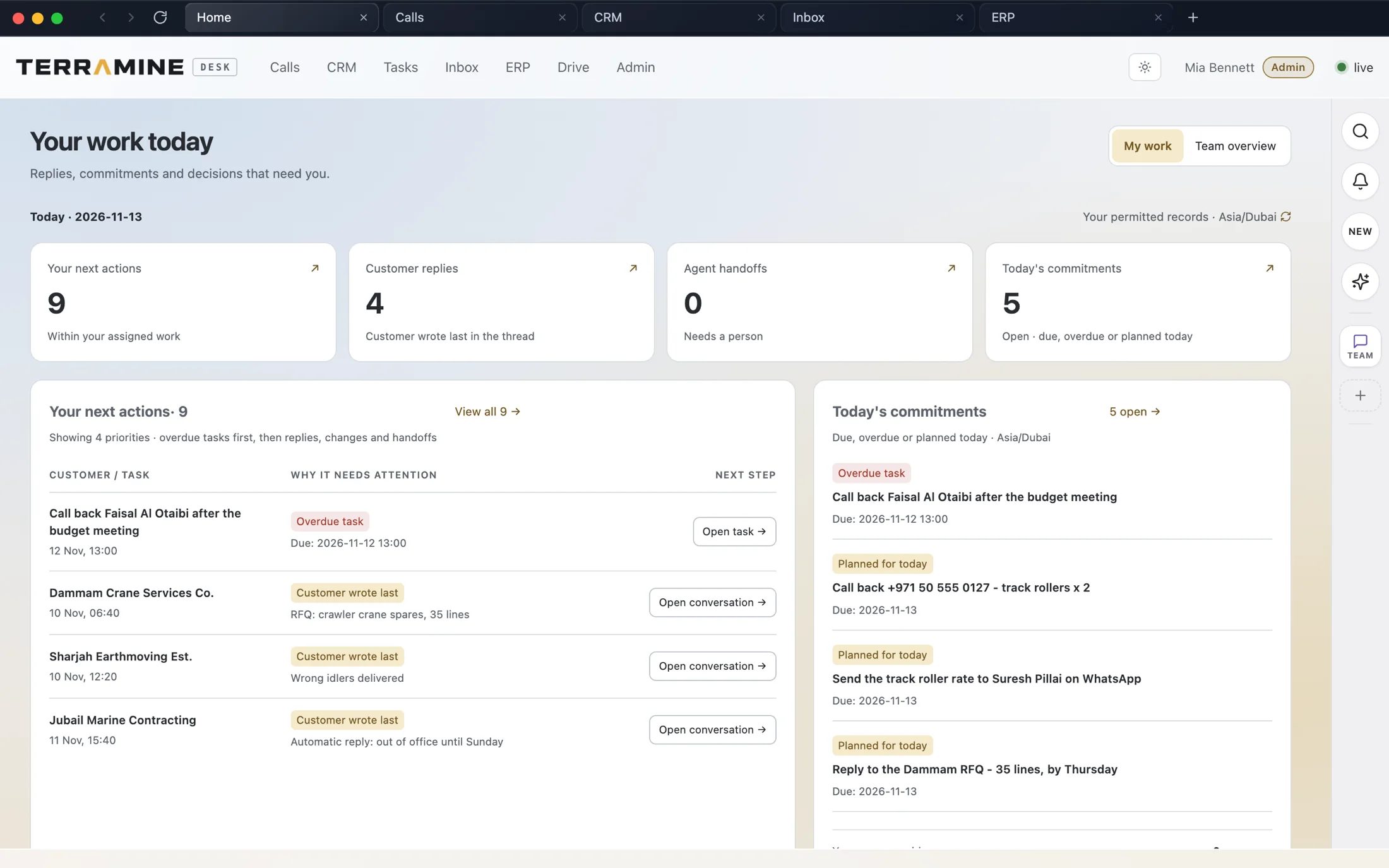
The same Terramine Desk you open in the browser, as a Mac app: tabs across the top for the order, the request and the letter you have open, the Mac's own notifications and a badge on the Dock.
Nothing is installed twice. Every tab is the live desk, so a change reaches the app the moment it reaches the browser. Sign in with Google or a passkey as in the browser, or with a code from Your account.
We'd like to use Google Analytics cookies to count visits and see which pages are read. Nothing is set until you choose, and the site works the same either way. Privacy notice