Task management for sales teams: every callback, promised reply and delivery check gets an owner, a due date and a link to the customer, call, email or order that created it.
Screenshots from the product, at the version captured at the time. The interactive demo is a simplified guided example, not a copy of every screen.
Inside the product
Follow-ups that cannot fall through.
See how the team's commitments look in Tasks. Every picture is cut from the actual product, with fictional demo data.
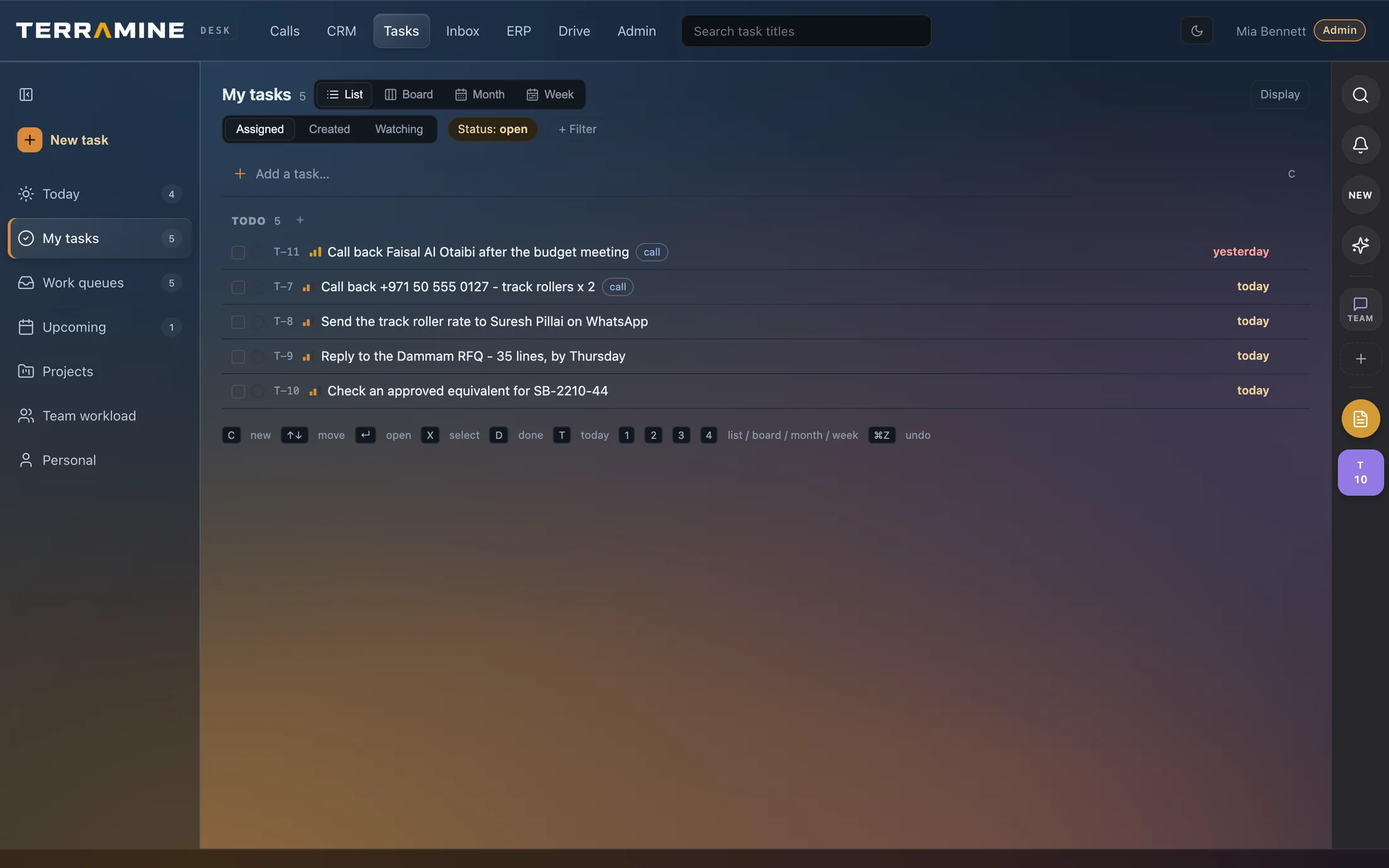
01 · My tasks
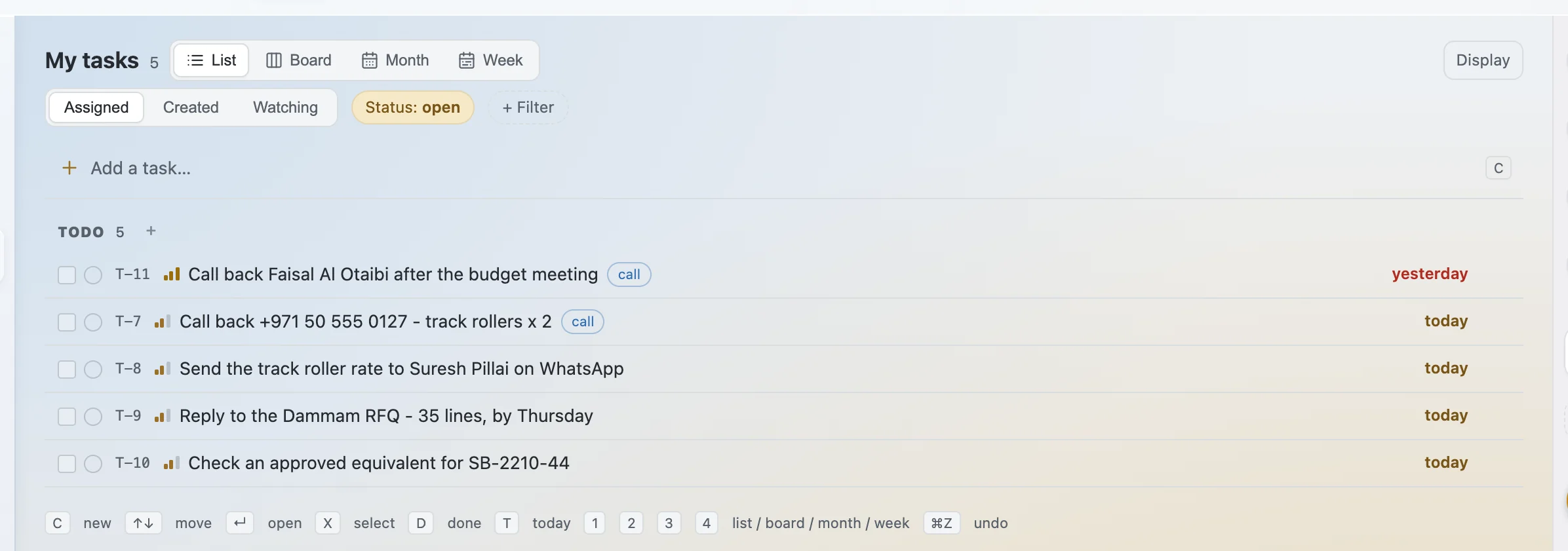
The day's follow-ups in one list.
My tasks lists what is assigned to you, with overdue work first. Add a task in plain words, move through the list from the keyboard and mark work done without opening it.
Assigned, created and watching views
Quick add in natural language
Keyboard shortcuts for every common action
Work queues, projects and team workload in the menu
My tasks: callbacks and follow-ups with due dates
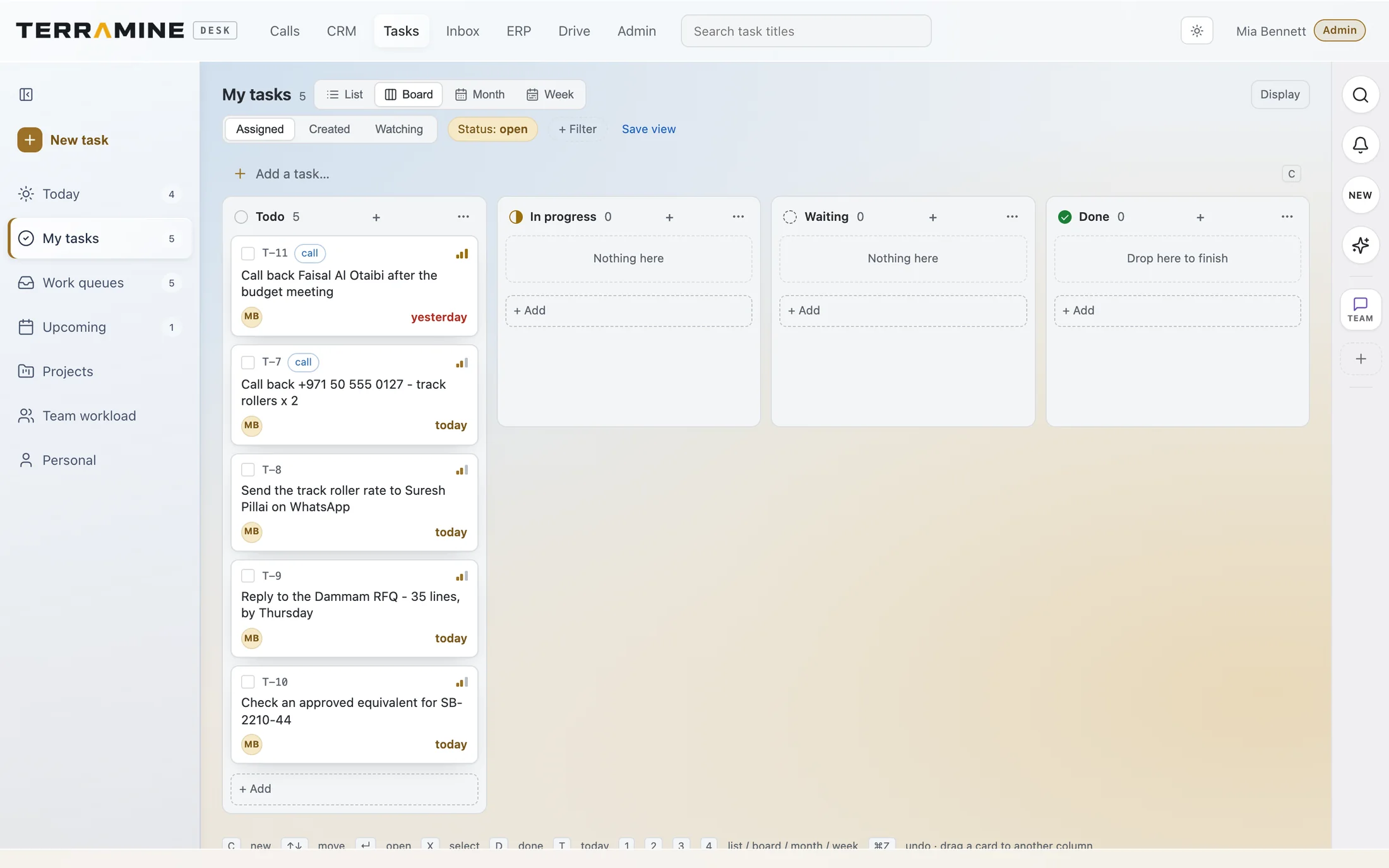
02 · Kanban board
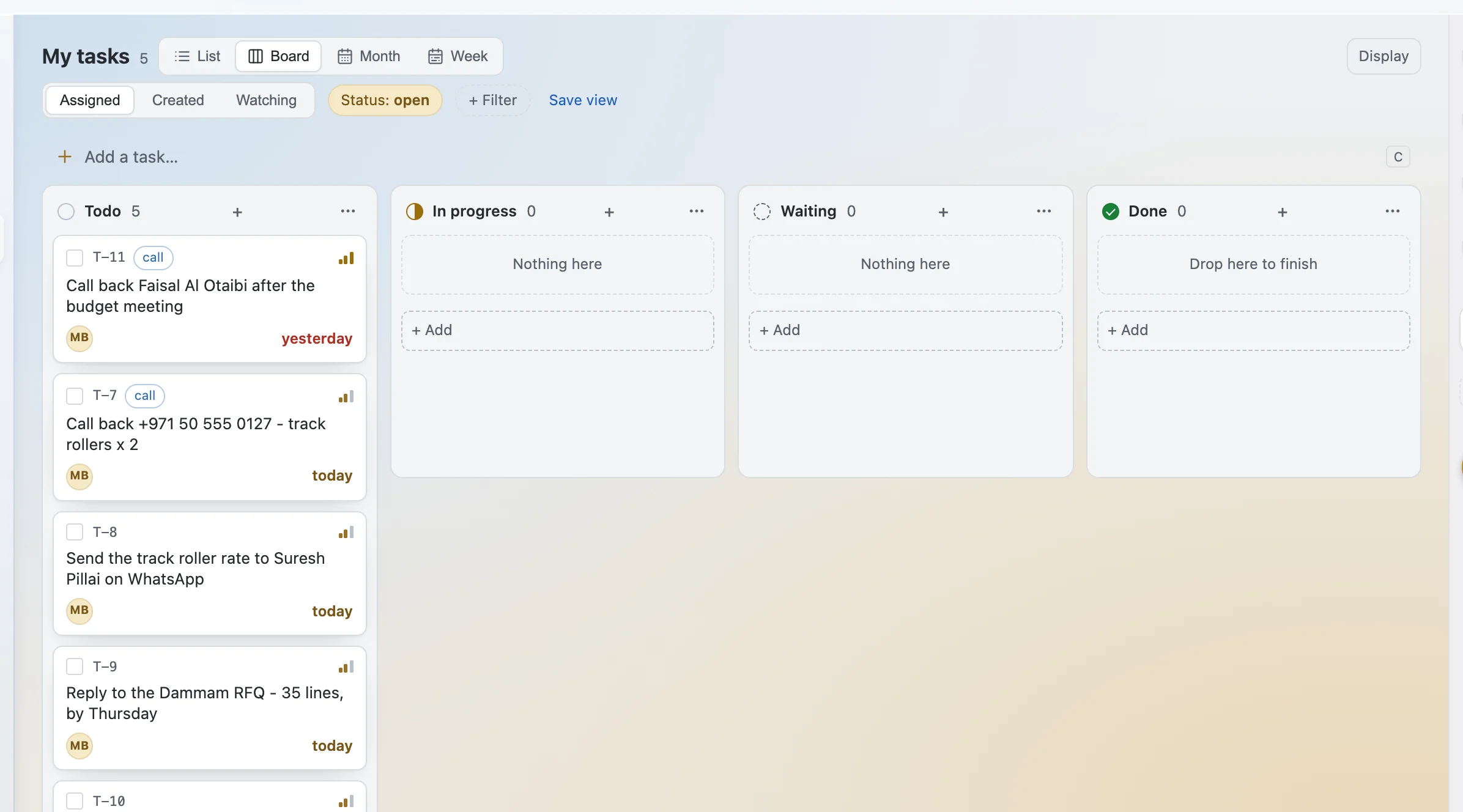
See how the work is moving.
Any list opens as a Kanban board: Todo, In progress, Waiting and Done, with the owner and the due date on each card. Drag a card to change its status.
Task board with column limits and swimlanes
Add a task in any column
Saved views of your own
List, Board, Month and Week on the same tasks
The task board: Todo, In progress, Waiting, Done
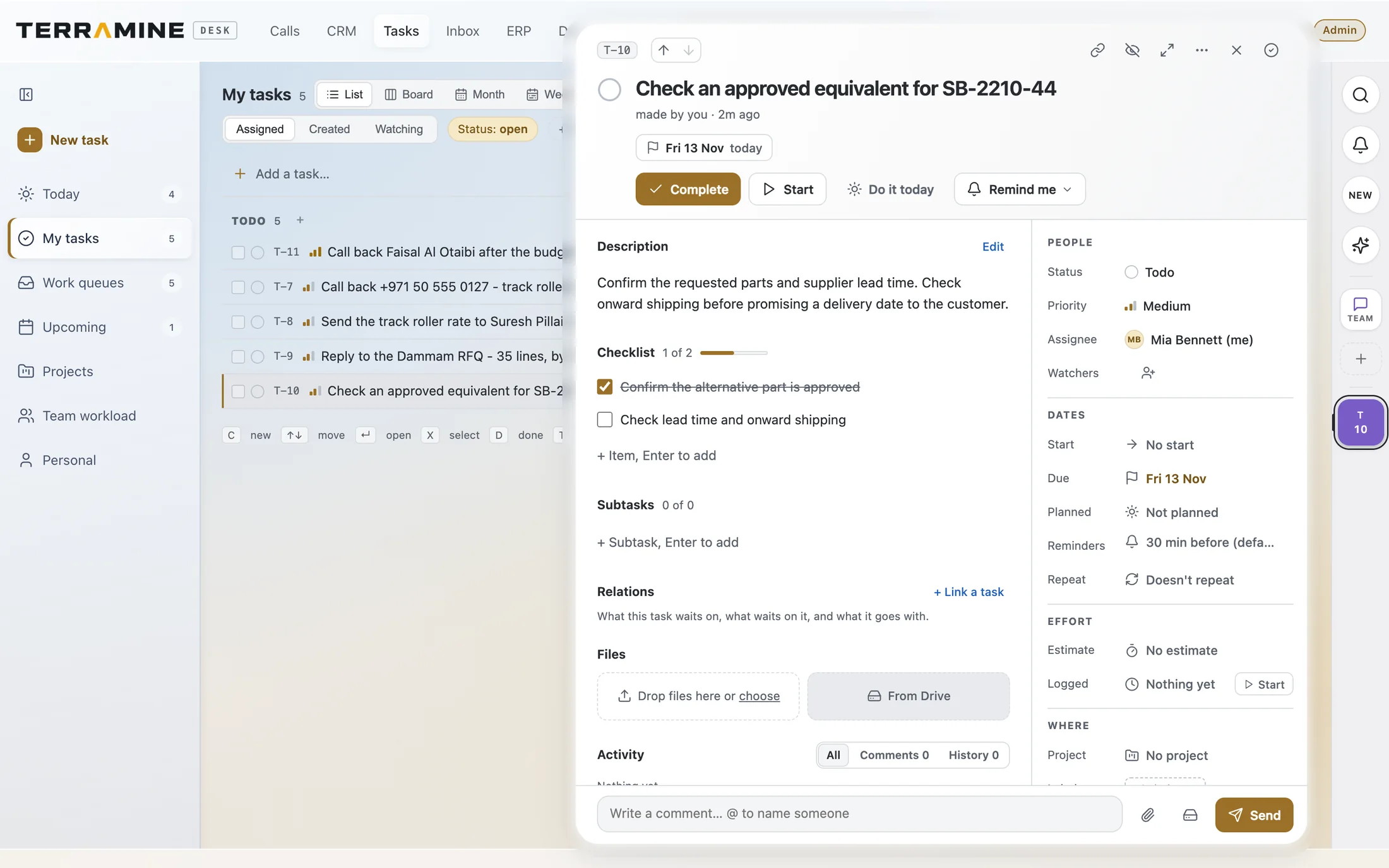
03 · Task card
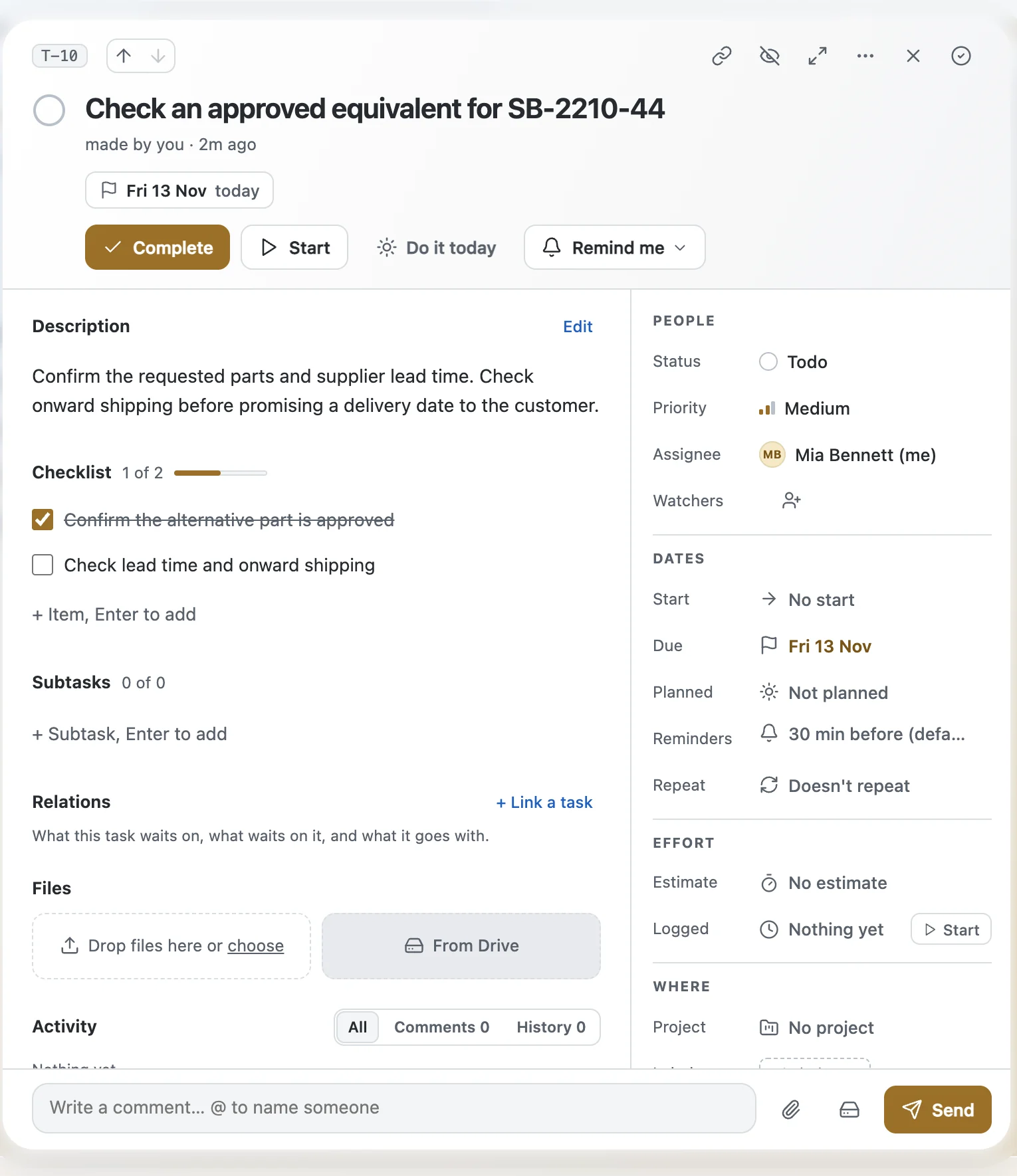
Give the next person the whole context.
A task card holds the description, a checklist, subtasks, the owner and watchers, the deadline, reminders and repeats, with files from your computer or from Drive and a comment thread.
Reminders and recurring tasks
Linked to the customer, call, email or order
Comments with @mentions and a history of changes
Complete, start or plan it for today in one press
A task card: checklist, owner, deadline and reminders
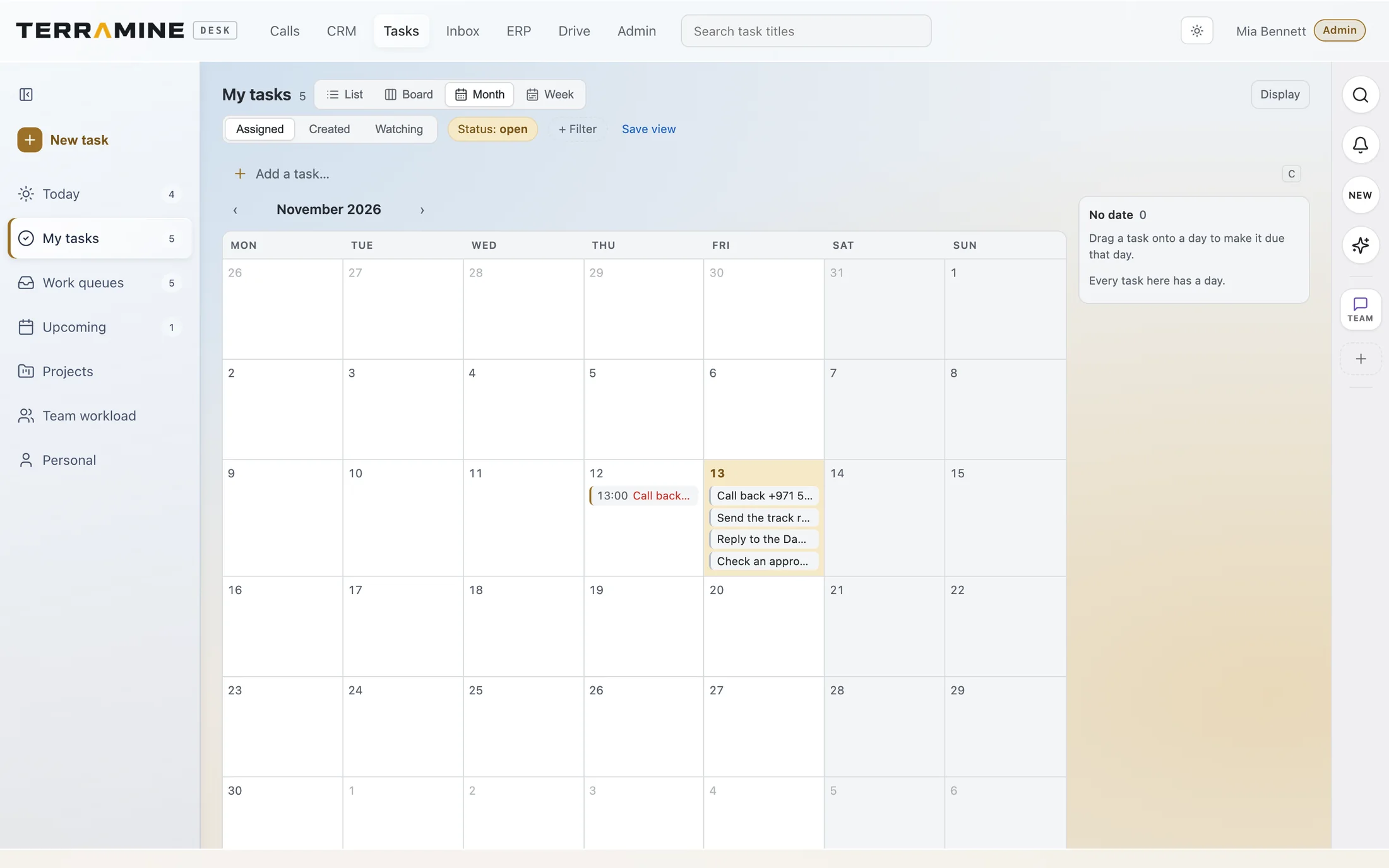
04 · Calendar
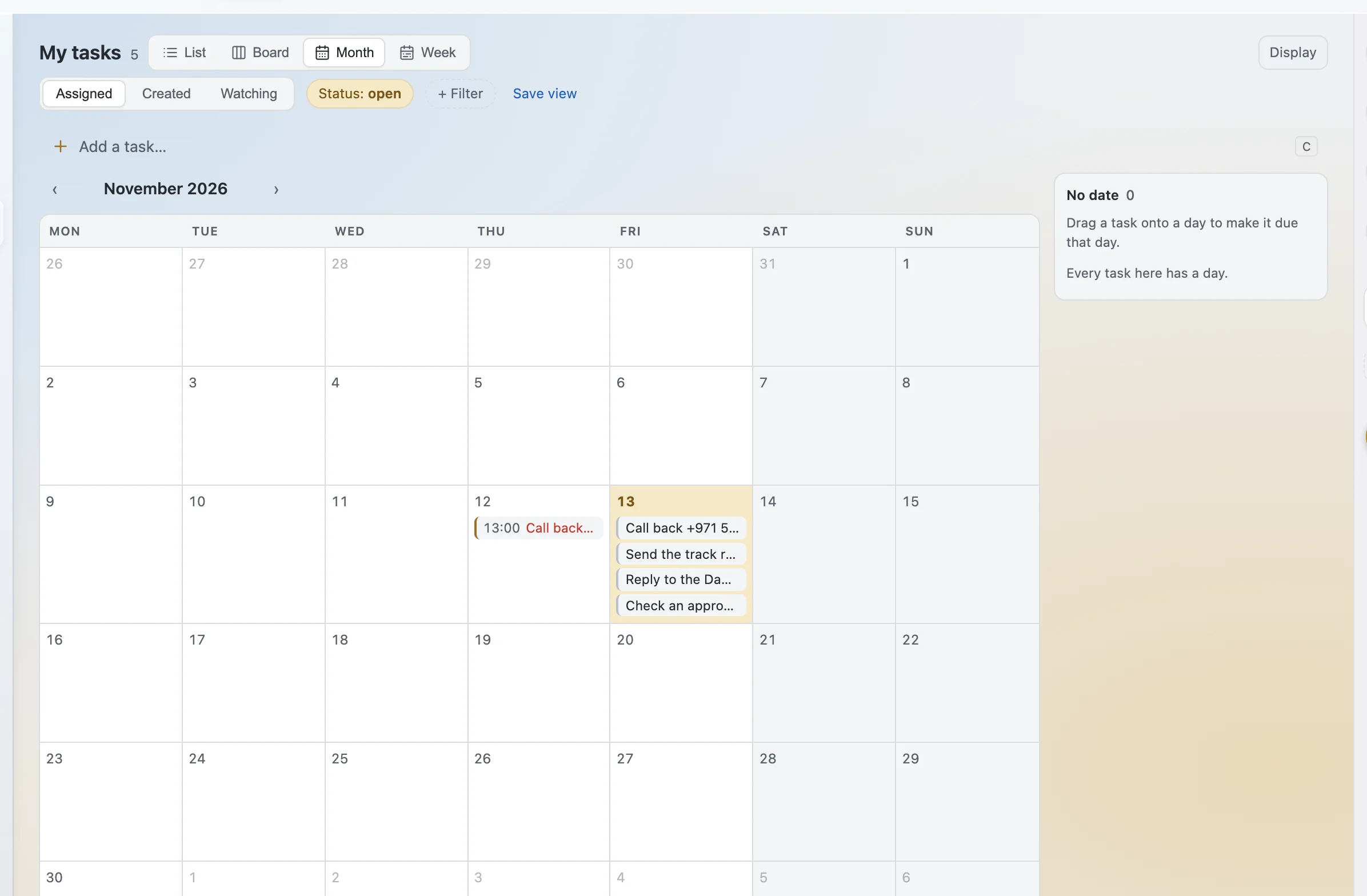
Deadlines across the month.
The month view puts every dated task on a calendar. Drag a task onto a day to give it a due date, and open the work behind each entry.
Task calendar by month or week
Tasks without a date listed beside the calendar
Overdue work marked in red
The same filters as the list and the board
The month view: dated tasks on a calendar
Work through conversation
Your workspace, one conversation away.
Chat with Terramine Desk to find information, understand what's happening and get work done across CRM, calls, email, orders and tasks.
Built-in tools connect the AI to your workspace records and actions. Ask in your own words: the assistant can look up information, bring the context together and prepare changes for your approval.
Review proposed plans before confirming. Small edits to the open record can apply immediately; enabled automation follows its configured rules.
Create a task to confirm delivery with the supplier.
Assign this follow-up to Mia and make it due Friday.
Show me the open tasks in this project.
Example from the interactive demo
A delivery check with the right context.
Aster Equipment has requested delivery within seven days. Open the example task to see who owns the supplier and shipping check, review the linked order, then change the due date or leave an update. The demo uses fictional records.
Find the work. Assign the next step. Keep it moving.
01
Ask what needs attention
Find your outstanding tasks, overdue follow-ups or work that has no owner. Ask about a customer or project to narrow the list and see the relevant context.
02
Create tasks through conversation
Ask AI to prepare a task with a title, owner, due date, priority and notes. Link it to the relevant customer, deal, order or email, then review before creating it.
03
Update the plan in plain language
Move a deadline, change the owner, adjust the priority or mark a task complete through Ask Desk. Check the proposed changes before applying them.
04
Keep the reason behind the task
Open the linked record to understand the customer request or commercial decision behind the work. Notes keep the next person informed when responsibility changes.
05
Coordinate people and AI callbacks
Keep human follow-ups and scheduled agent calls visible. Ask Desk can propose a callback for a person or an AI voice agent, with a time and a reason for the call.
06
Organise work into projects
Group related tasks in a project and ask about its open work, members and milestones. AI can also propose creating a project or updating its dates and status.
07
Today, your plan first
Today keeps your daily plan at the top and overdue tasks in a separate list until you add them. My tasks still holds the full list, in list, board or month view.
08
Work queues for people and agent calls
See work for people separately from AI agent calls, grouped by type. Select matching tasks across pages and dismiss unwanted work with a reason; dismissed work is kept apart from completed work.
09
A task from a call
Create a task on a call and it is filled in from the step the call agreed: what to do, the day and hour the customer named, and the summary.
Where it fits
Your tasks, projects and customer work together
Use list, board and month views to organise the work. Keep tasks in a project, link them to a customer or commercial record, or manage them on their own. Personal tasks stay private, and private projects are visible to their members. Your team can work directly in the task view or use Ask Desk to prepare changes.
Before you try it
Questions about sales task management
What can AI do with tasks?
Ask Desk can find outstanding and overdue work, read task details and propose new tasks. It can also prepare changes to titles, owners, due dates, planned dates, priorities, notes, projects and task status. Review the proposed changes before applying them.
Can I create a task from a customer enquiry?
Yes. Ask Desk can prepare a task linked to a company, lead, deal, order, supplier request, document or email. Specify the action, owner and deadline, then review the proposal.
Does assigning a task to AI mean it will complete any job?
No. A task records work for the person who owns it. An AI callback is a separate scheduled action for a configured voice agent. Creating an ordinary task does not make the AI do the work.
Can I ask for a callback at the customer's local time?
Yes. When you ask for a callback, say that the time is the customer's local time. Before confirming, check the proposed time and whether the call goes to a person or an AI voice agent.
Can AI see everyone's personal tasks?
No. Ask Desk's task and project tools respect the access of the person asking. Personal tasks are private to their owner, and private projects are visible to their members.
Can I change a task in the demo?
Yes. Open a task, change the owner or due date, add a note, and mark it complete.
Will changes affect anyone else?
No. Demo changes are stored in this browser only. Reset demo restores the starting records.
Can I add a task?
Yes. The demo lets you create a task linked to the sample customer.
Your process comes next
Start with one workflow. Connect the work from there.
We'd like to use Google Analytics cookies to count visits and see which pages are read. Nothing is set until you choose, and the site works the same either way. Privacy notice