AI that helps your team understand customers and follow through.
A B2B CRM where every company, contact, lead and deal sits beside the calls, emails, chats, tasks and orders that explain the relationship. AI agents fill it in as they work; your team sees the next action.
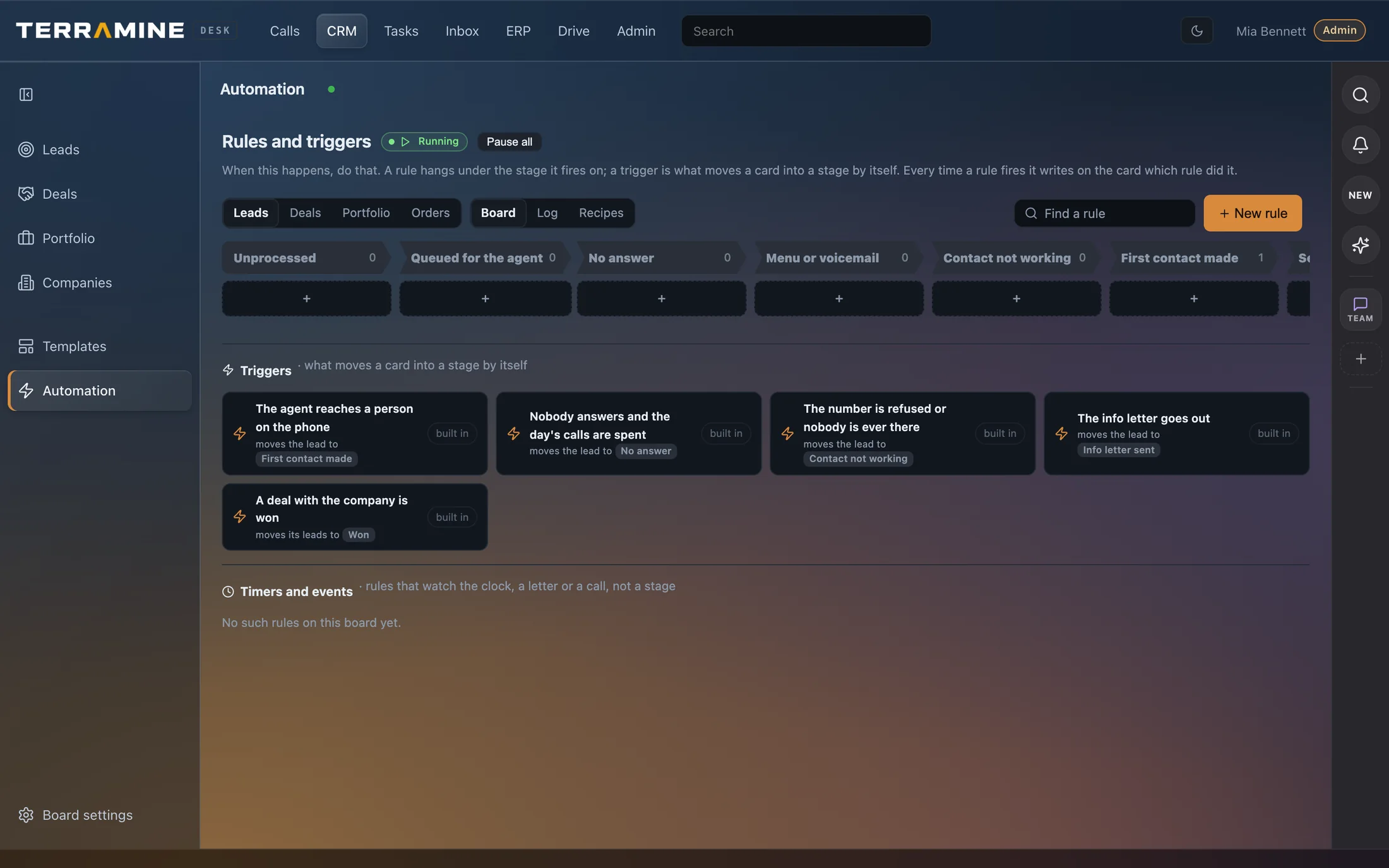
Rules sit under the stage they fire on: notify the owner, raise a task, move the card or put an email in Outbox for a person to send. Built-in triggers move a lead when a call or an email changes its state.
Screenshots from the product, at the version captured at the time. The interactive demo is a simplified guided example, not a copy of every screen.
Inside the product
A sales CRM that fills itself in from calls and email.
See how leads, deals and companies look in the CRM. Every picture is cut from the actual product, with fictional demo data.
01 · Lead pipeline
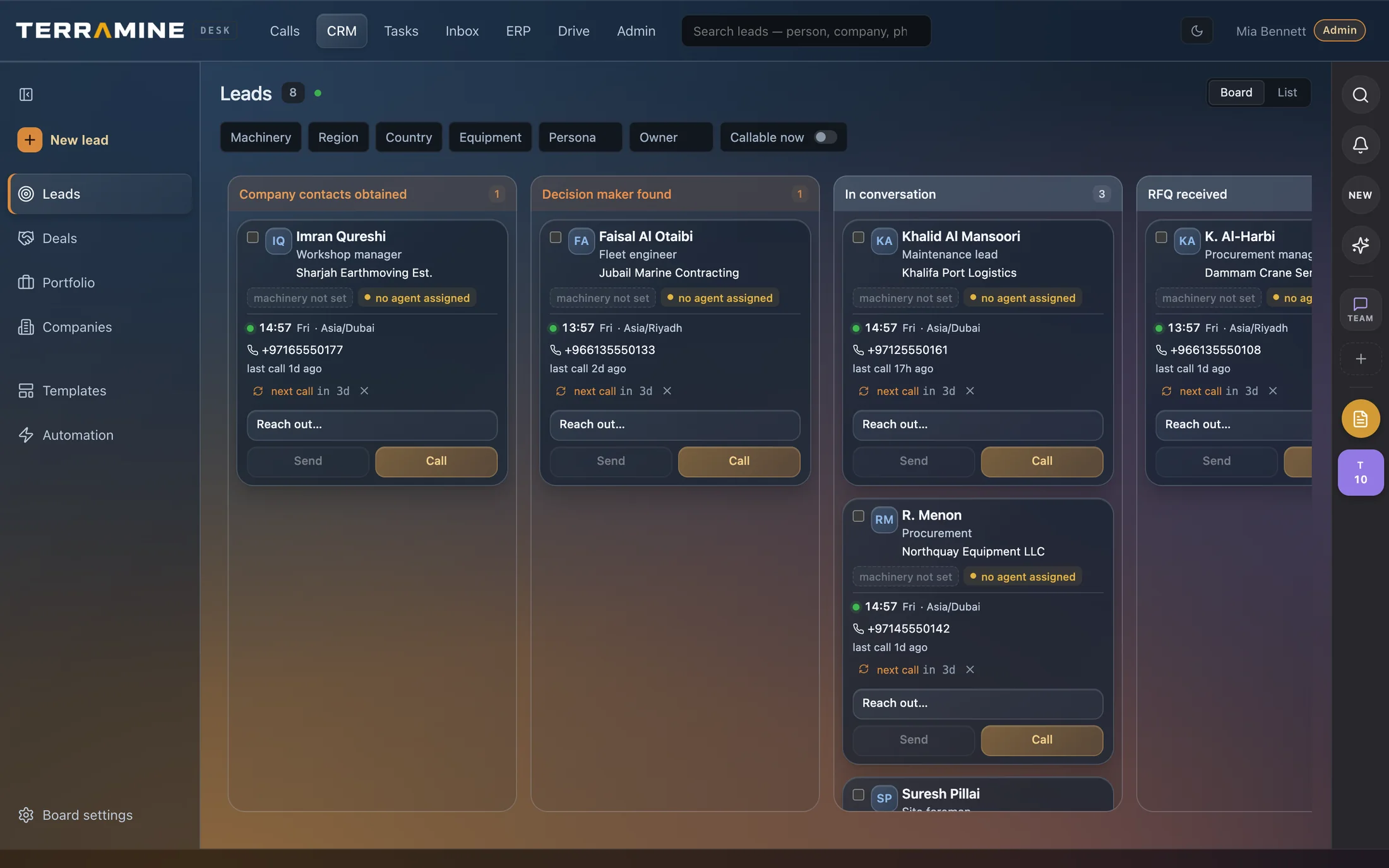
A lead board with the next call on every card.
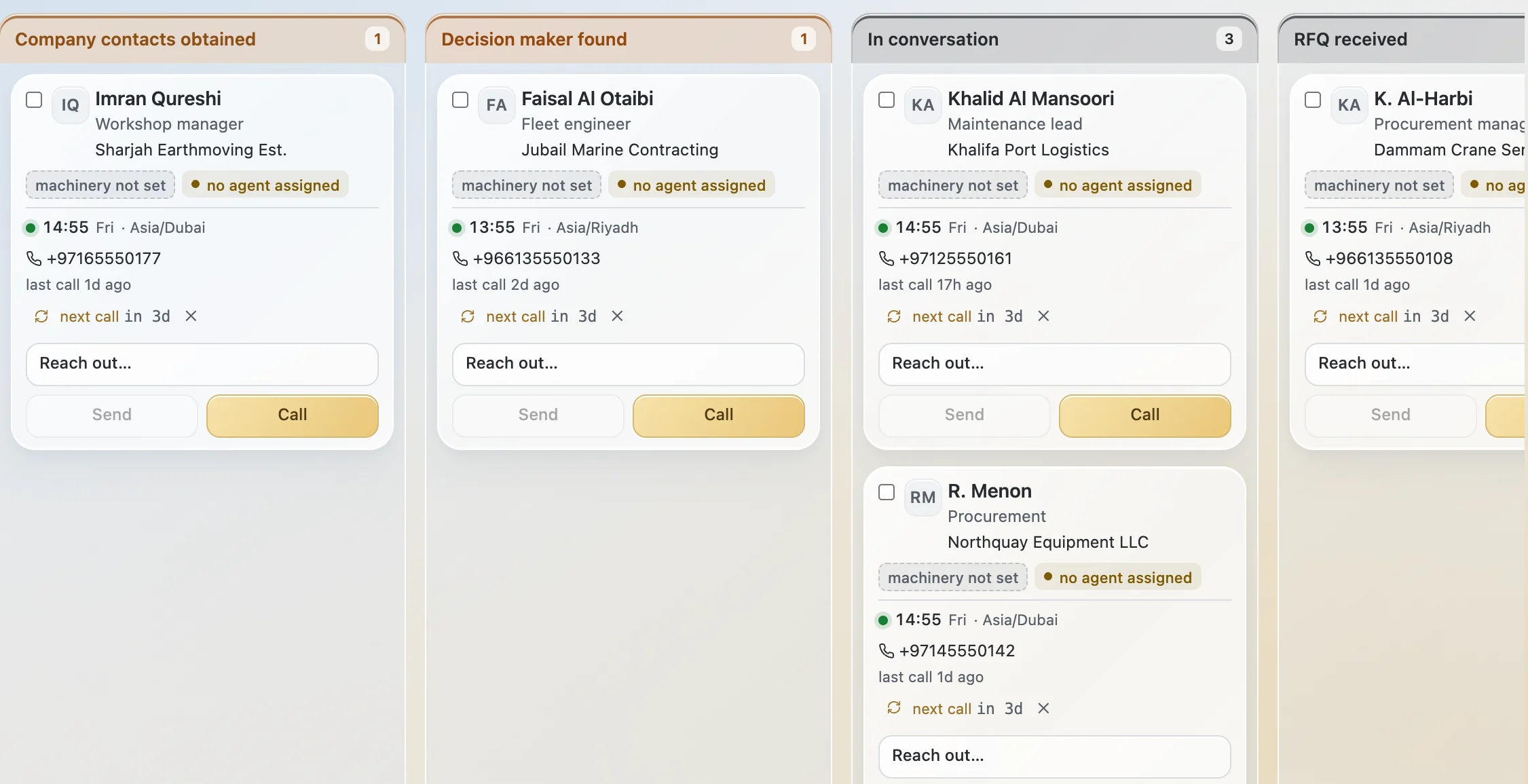
The lead pipeline is a board of stages you name yourself. Each lead card shows the person, the company, their local time, the last call and the next one, with Call and Send on the card.
Kanban lead board or a list, with bulk moves
Local time and callable now per contact
An AI agent assigned to each lead
Stages move by themselves when a call or an email changes them
The lead board: stages, local time and the next call
02 · Deal pipeline
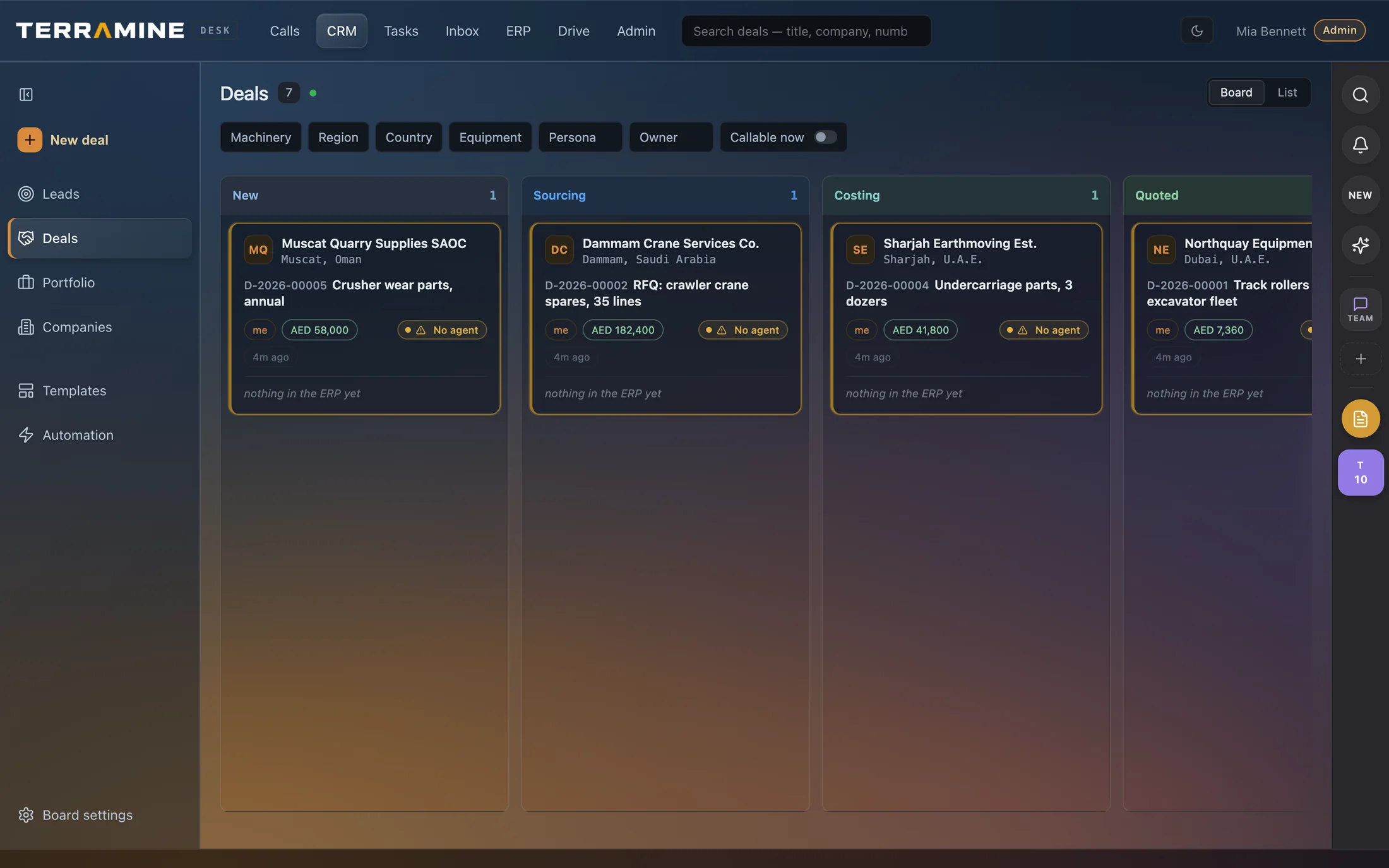
Deals that follow the order.
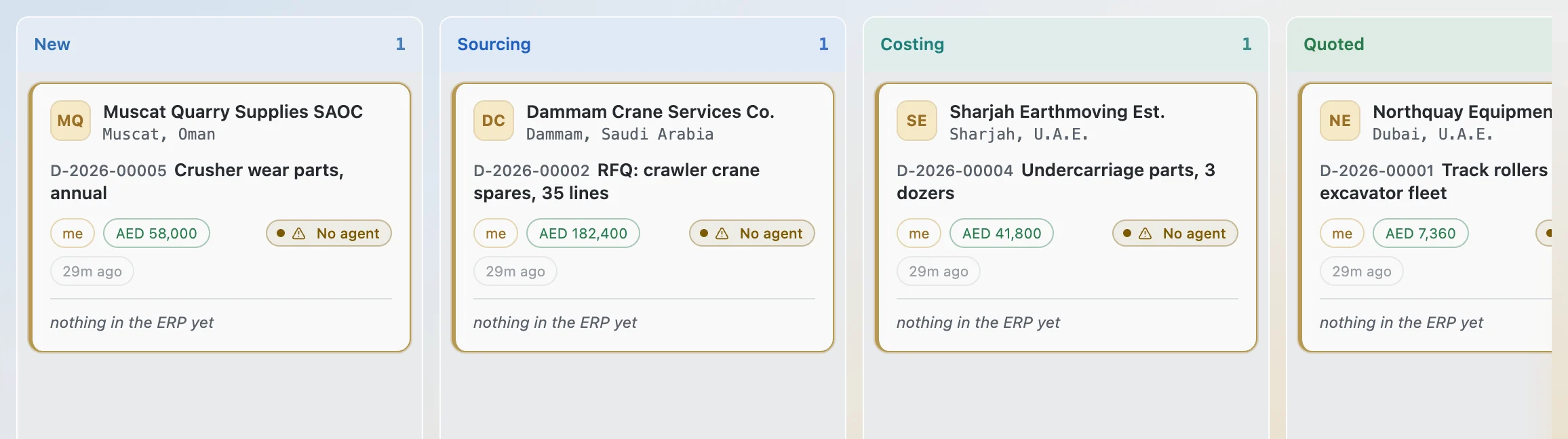
A sales pipeline from a new request through sourcing, costing and quotation to won. The deal card carries the amount, the owner and what the ERP holds, and orders move the deal along its stages.
Deal stages renamed and coloured by you
Amount, owner and agent on every card
Linked to the customer order and its quotation
Board or list, filtered by region, country, equipment and owner
The deal pipeline: New, Sourcing, Costing, Quoted
03 · Companies
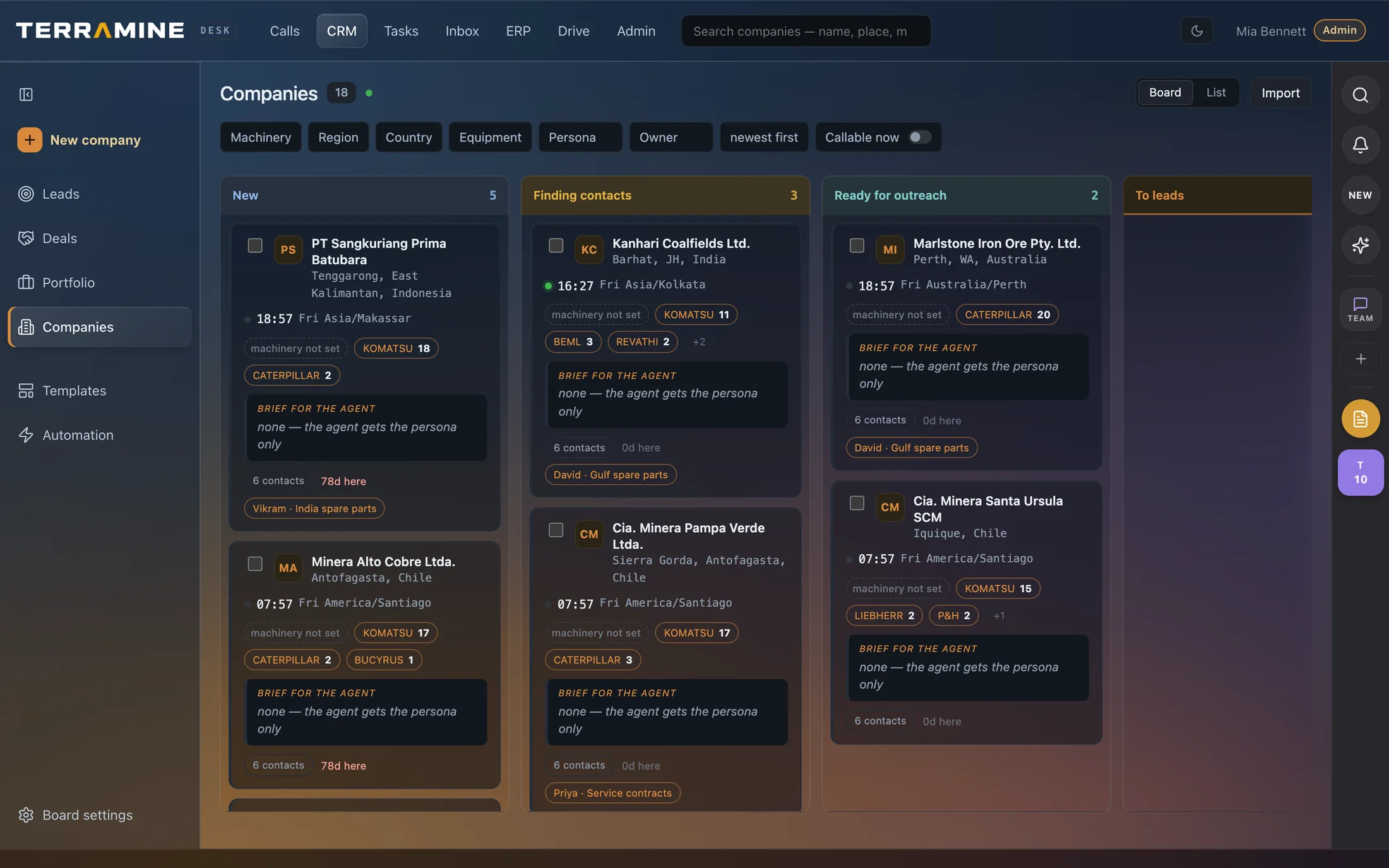
Company cards that know the fleet.
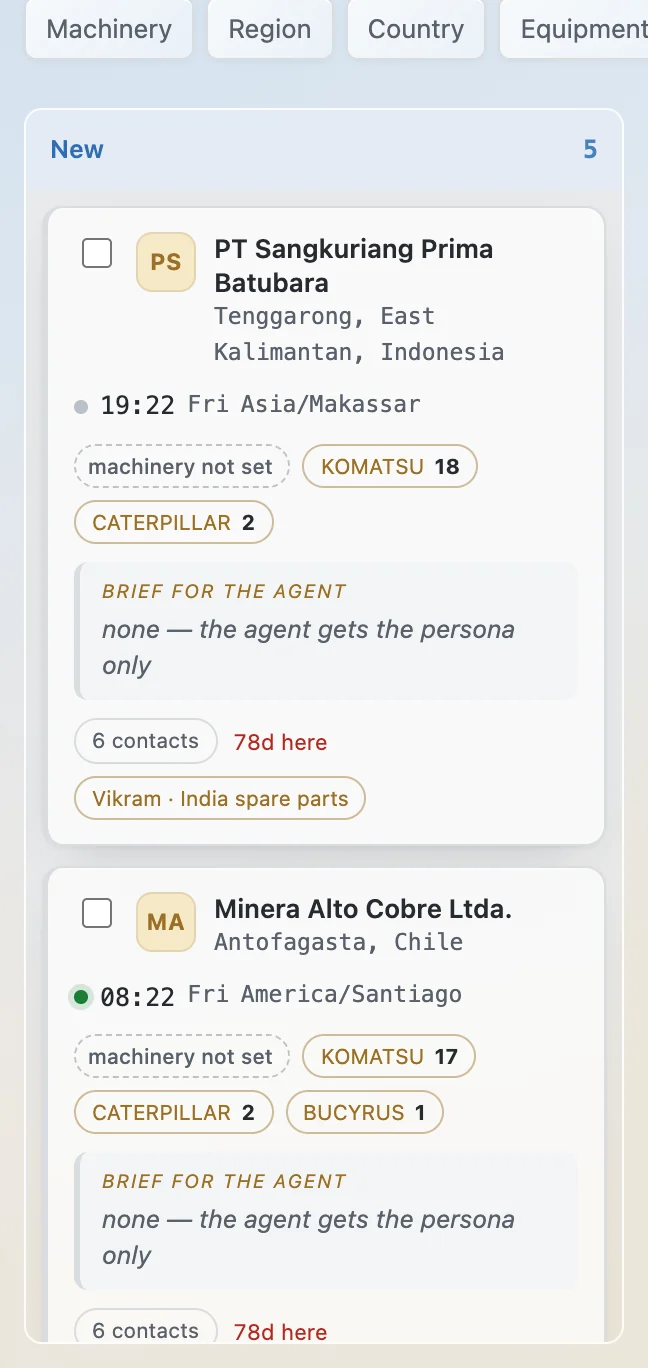
Each company card shows the location and local time, the equipment brands in its fleet, the number of contacts and the brief the AI agent works from.
Customer database by region, country, machinery and equipment
Import companies and contacts from a spreadsheet
Duplicate detection before a record is created
A brief for the AI agent on each company
Company cards with equipment brands and the agent's brief
04 · CRM automation
When this happens on a card, do that.
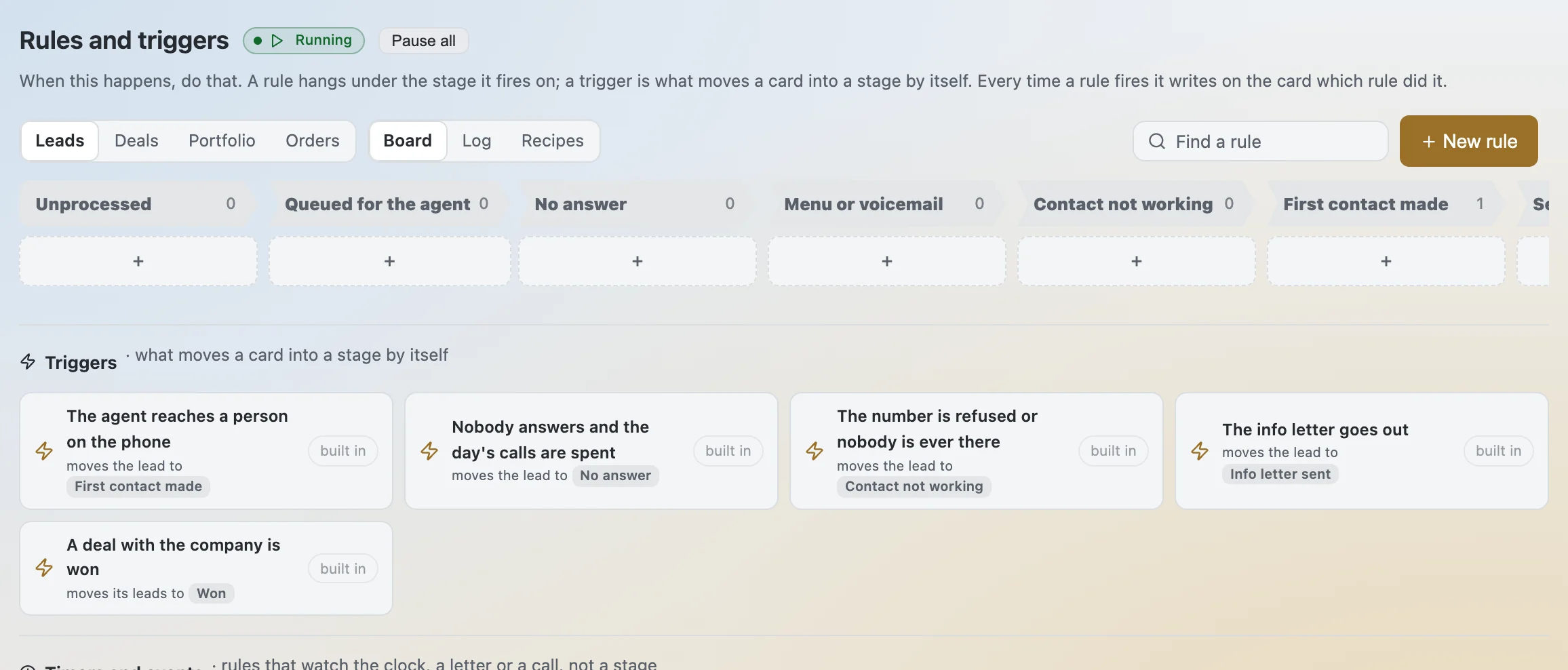
CRM automation rules sit under the stage they fire on. When a card reaches a stage, an email arrives, a call ends or nothing happens for days: notify the owner, raise a task, move the card or prepare an email.
Triggers from calls, emails, tasks and timers
Conditions on country, owner or any field
Anything addressed to a client waits in Outbox for a person
A dry run and a log for every rule
Automation rules and built-in triggers under each stage
Where it fits
Customer context for your team and your AI agents
Keep companies, contacts, leads and deals in one shared workspace, with the calls, emails and tasks behind each relationship. The CRM assistant answers questions and proposes action plans for review; small edits to the open record can apply immediately. Configured voice agents use customer history and company instructions during calls, then capture the outcome and agreed follow-up.
Work through conversation
Your workspace, one conversation away.
Chat with Terramine Desk to find information, understand what's happening and get work done across CRM, calls, email, orders and tasks.
Built-in tools connect the AI to your workspace records and actions. Ask in your own words: the assistant can look up information, bring the context together and prepare changes for your approval.
Review proposed plans before confirming. Small edits to the open record can apply immediately; enabled automation follows its configured rules.
Find leads, review customer history and identify overdue follow-ups. Ask questions such as "Which customers requested a callback yesterday?" and get answers from your CRM records and conversations.
02
Capture the details that matter
Turn calls into summaries with customer needs, timelines, decision-maker details, objections and agreed next steps. Keep the source conversation available for your team to check.
03
Prepare CRM updates for approval
Ask the assistant to prepare new companies and contacts, update lead stages, create or edit deals, and add notes. Review the proposed changes before applying them.
04
Organise the next follow-up
Prepare linked tasks and schedule callbacks for a person or an AI voice agent. Choose the agent persona for the job; enabled agents can make scheduled calls with the customer context.
05
Personalise calls and outreach
Use customer records, earlier conversations and company-specific instructions to brief agents and prepare relevant outreach messages. Review proposed messages and calling actions before running them.
06
Spend less time entering addresses
Paste an address from an email or document, and AI splits it into the company's address fields. Check the result before saving.
07
Stages you name and colour
Rename a stage, say what a card there is waiting for and give it a colour, on the board itself.
08
Automation rules
When a card reaches a stage, an email arrives or nothing happens for days: notify the owner, raise a task or move the card. Anything addressed to a client waits in Outbox for a person.
Before you try it
Questions about CRM software
What does CRM software help a sales team do?
Keep customer and contact records, track leads and deals, review communication history and assign the next action. Terramine Desk connects those records to the calls, emails, tasks and orders behind the relationship.
What does AI add to the CRM?
Terramine Desk can answer questions about leads and customer history, extract key details from calls, prepare record updates, draft outreach and organise follow-up tasks. AI voice agents use that same customer context when handling configured calls.
Can the AI change records or call customers on its own?
Ask Desk proposes a plan for you to review; only small edits to the open record apply immediately. Agents on incoming calls and scheduled callbacks, once enabled, run as configured.
What is the difference between CRM and ERP?
CRM focuses on the customer relationship and sales opportunity. ERP focuses on the commercial work: requested items, supplier responses, quotations and orders. In Terramine Desk, both use the same customer context.
Is this a separate CRM from the calling workspace?
No. It is one connected workspace: in the demo you move between Calls, Inbox, CRM, ERP and Tasks with the same customer in view.
Can the team review what the agent captured?
Yes. The customer card links back to the call transcript and the source email.
Can I explore a real customer record?
No. The demo uses fictional companies; no real customer data is ever loaded into it.
Your process comes next
Start with one workflow. Connect the work from there.
We'd like to use Google Analytics cookies to count visits and see which pages are read. Nothing is set until you choose, and the site works the same either way. Privacy notice