AI-assisted ERP for trading teams

From customer enquiry to quotation — with AI doing the preparation.

A trading ERP that connects the customer's enquiry, supplier RFQs, supplier quotations, costing, the customer quotation, purchase orders and stock in one workflow. AI reads the documents; your team approves each step.

Product screenshot

Inside the product

From RFQ to quotation, on one order.

See the order a trading team works on every day. Every picture is cut from the actual product, with fictional demo data.

01 · Customer order

One order, from enquiry to delivery.

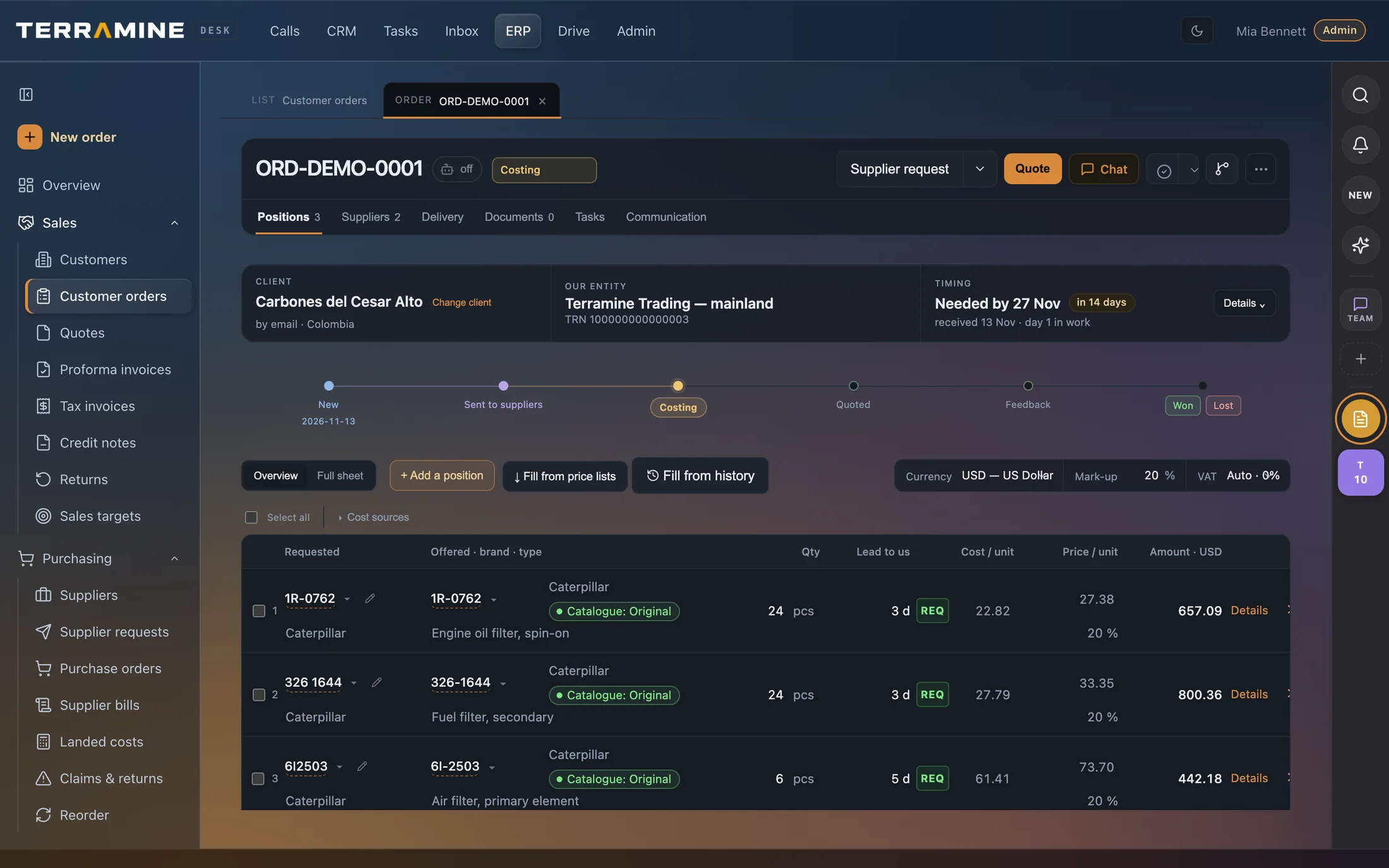
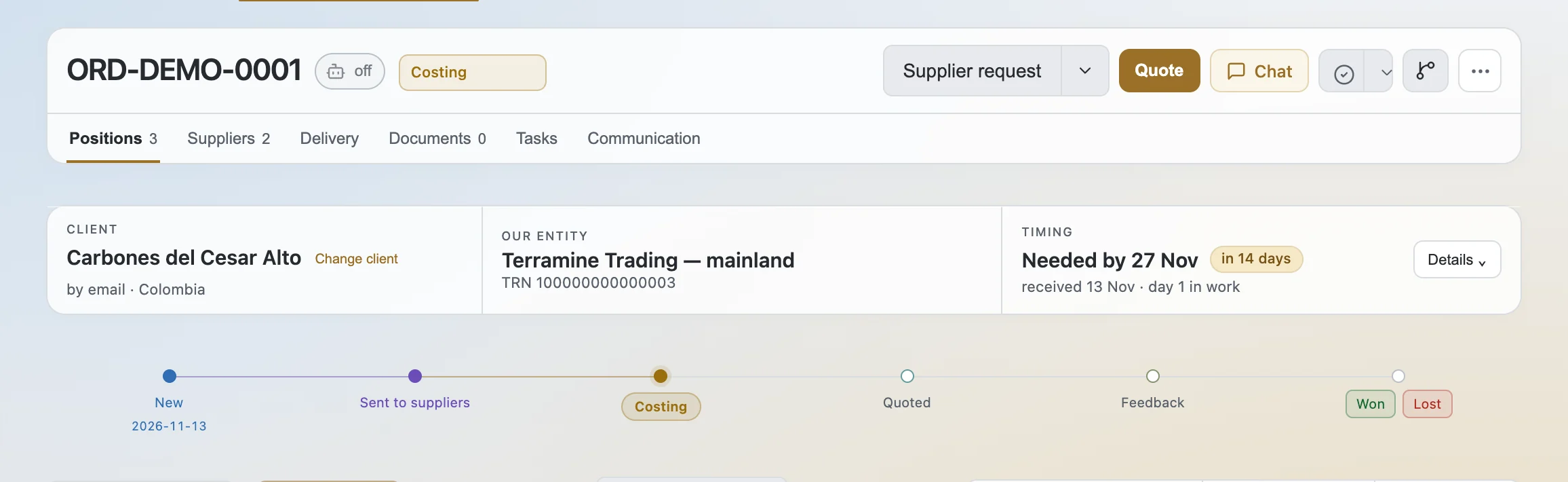
A customer order carries the client, your selling entity, the date it is needed by and its stage: new, sent to suppliers, costing, quoted, feedback, won or lost. Tabs hold positions, suppliers, delivery, documents and the conversation.

  • Sales order management with a stage track
  • Supplier request, Quote and team Chat on the order head
  • Linked to the CRM deal and the source email
  • An Autopilot switch on every order
ERP customer order in Terramine Desk with client, selling entity, needed-by date and a stage track from New to Won or Lost
A customer order with its client, timing and stages
02 · Costing

Cost, mark-up and price on every line.

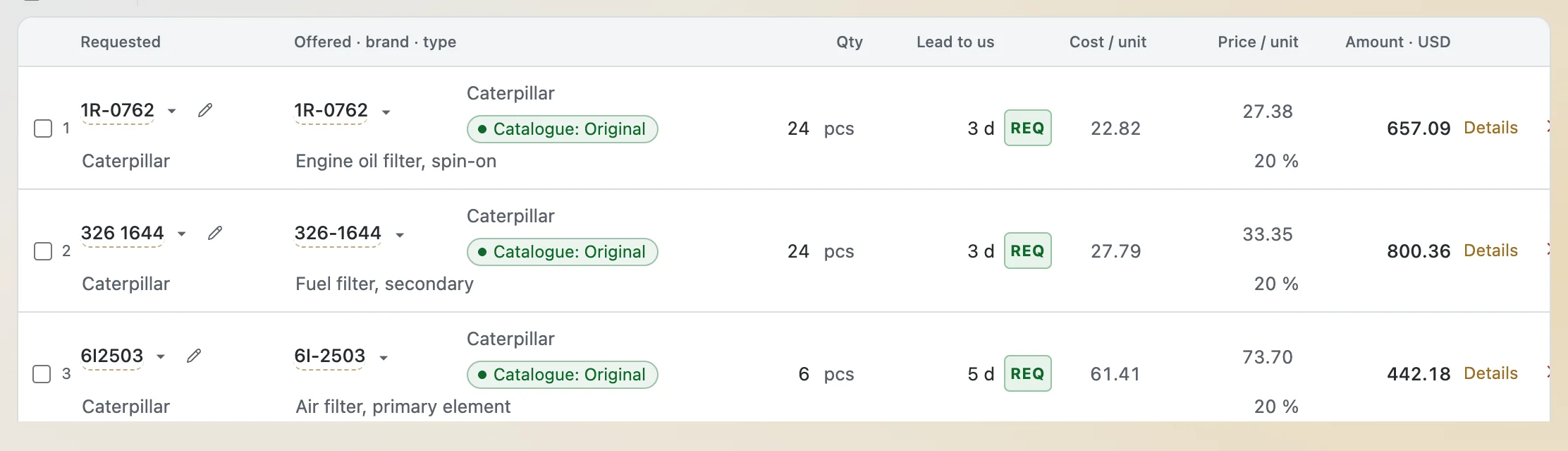
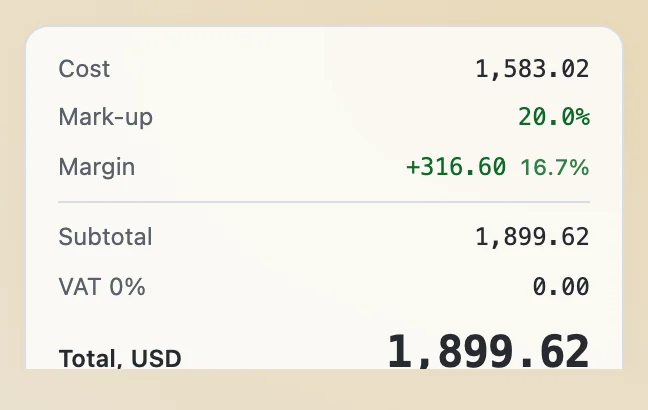
Each order line shows the requested and offered part, brand and type, quantity, supplier lead time, cost, price and mark-up. Totals show the margin before a quotation is prepared.

  • Quotation costing line by line
  • Catalogue matches: original, aftermarket, cross-references
  • Fill prices from price lists or from offer history
  • Currency and VAT handled on the order
ERP order lines in Terramine Desk with requested and offered part numbers, brand, quantity, lead time, cost per unit, price and mark-up
Order lines with cost, price and mark-up
Order totals in Terramine Desk showing cost, mark-up, margin, subtotal, VAT and total in USD
Cost, mark-up, margin and total
03 · Supplier RFQ

Ask every supplier who covers the order.

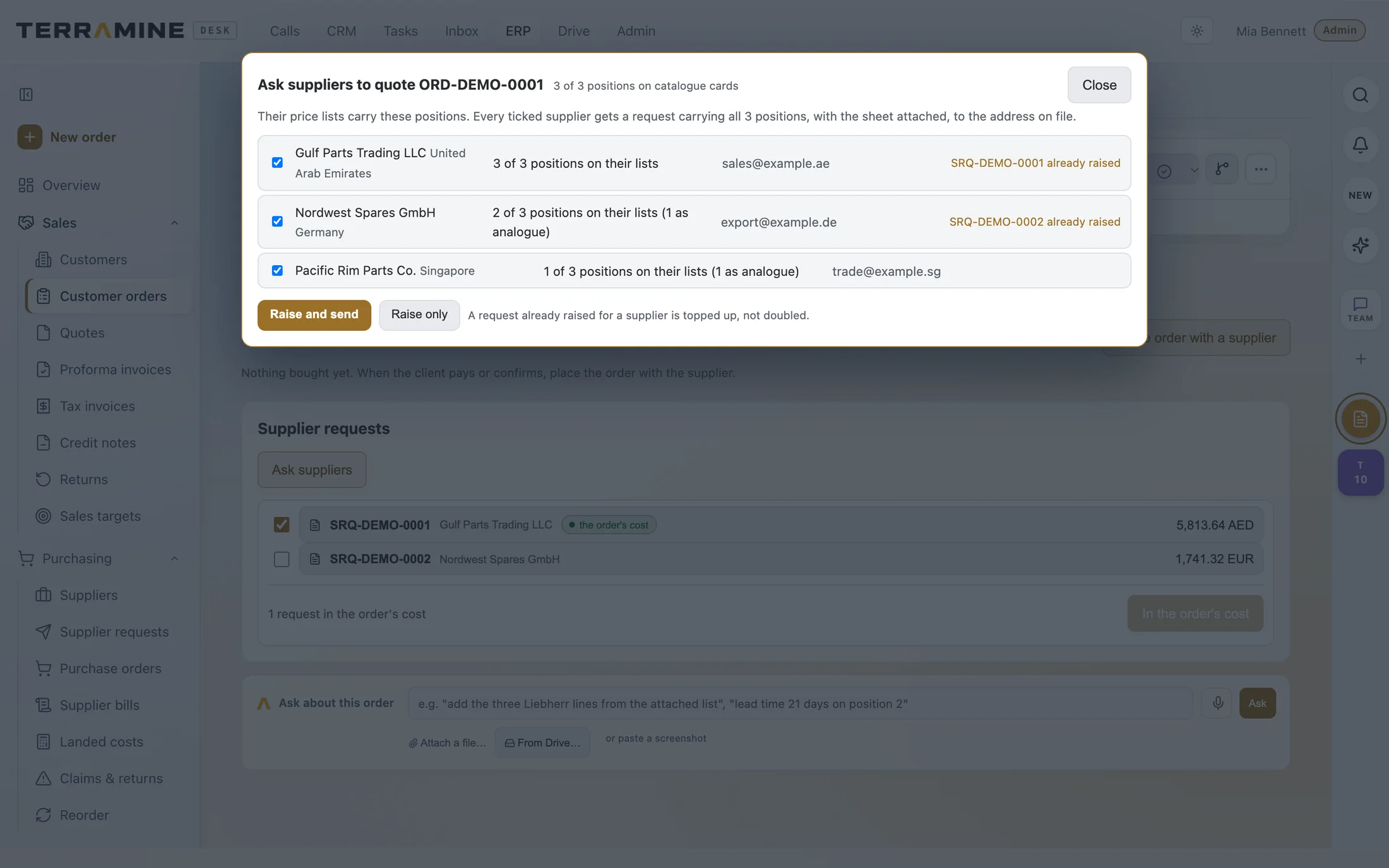
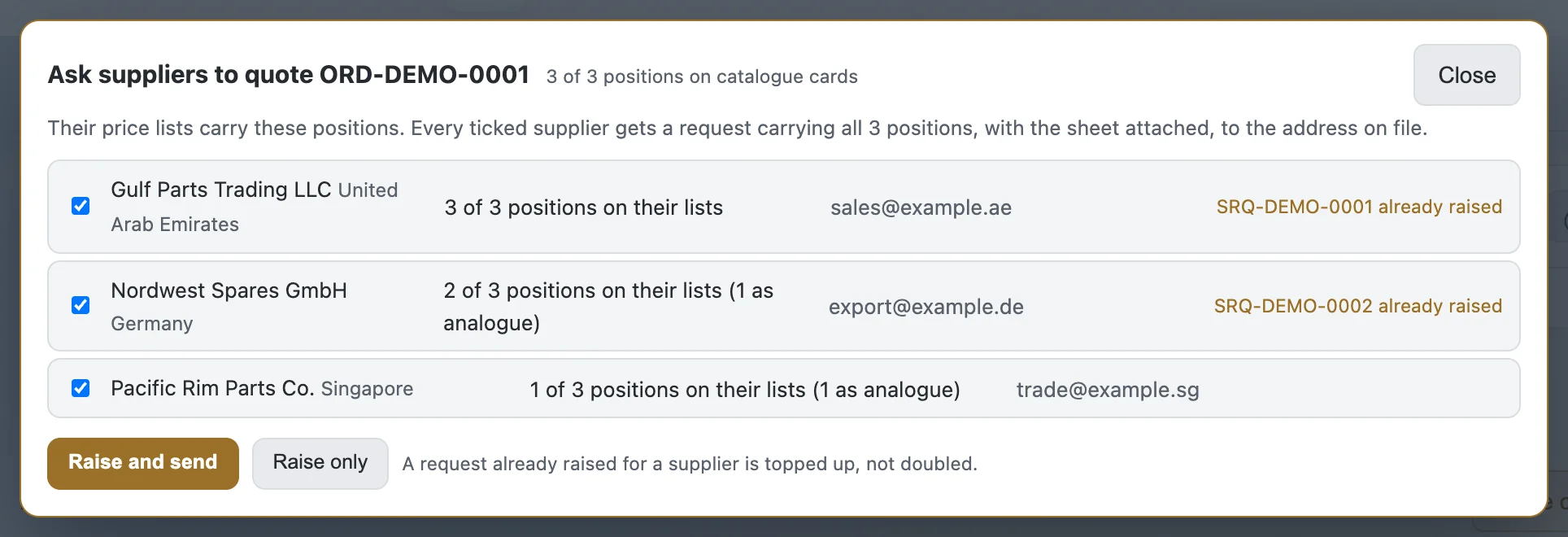
Terramine Desk shows which suppliers cover the requested parts from their price lists. Tick them and it raises a supplier request (RFQ) for each, with an Excel sheet attached, and sends it or holds it for you.

  • Supplier selection by price-list coverage
  • One request per supplier, never doubled
  • Supplier quotations read by AI into the request
  • Two supplier offers compared on landed cost
Supplier RFQ window in Terramine Desk listing suppliers that cover the order's positions, with Raise and send and Raise only buttons
Choose the suppliers and raise the RFQs
04 · Ask AI

Ask about the order in your own words.

An AI assistant on the order takes an instruction such as adding lines from an attached list or changing a lead time. It proposes the change, and you approve it before anything is applied.

  • Add lines from a file, a photo or a screenshot
  • Dictate the instruction by voice
  • Attach a file from your computer or from Drive
  • Changes shown as a plan to review
Ask about this order line in Terramine Desk ERP with an instruction field, voice dictation, attach a file and From Drive
Ask about this order: type, dictate or attach a file
05 · ERP reports

Every report in one library.

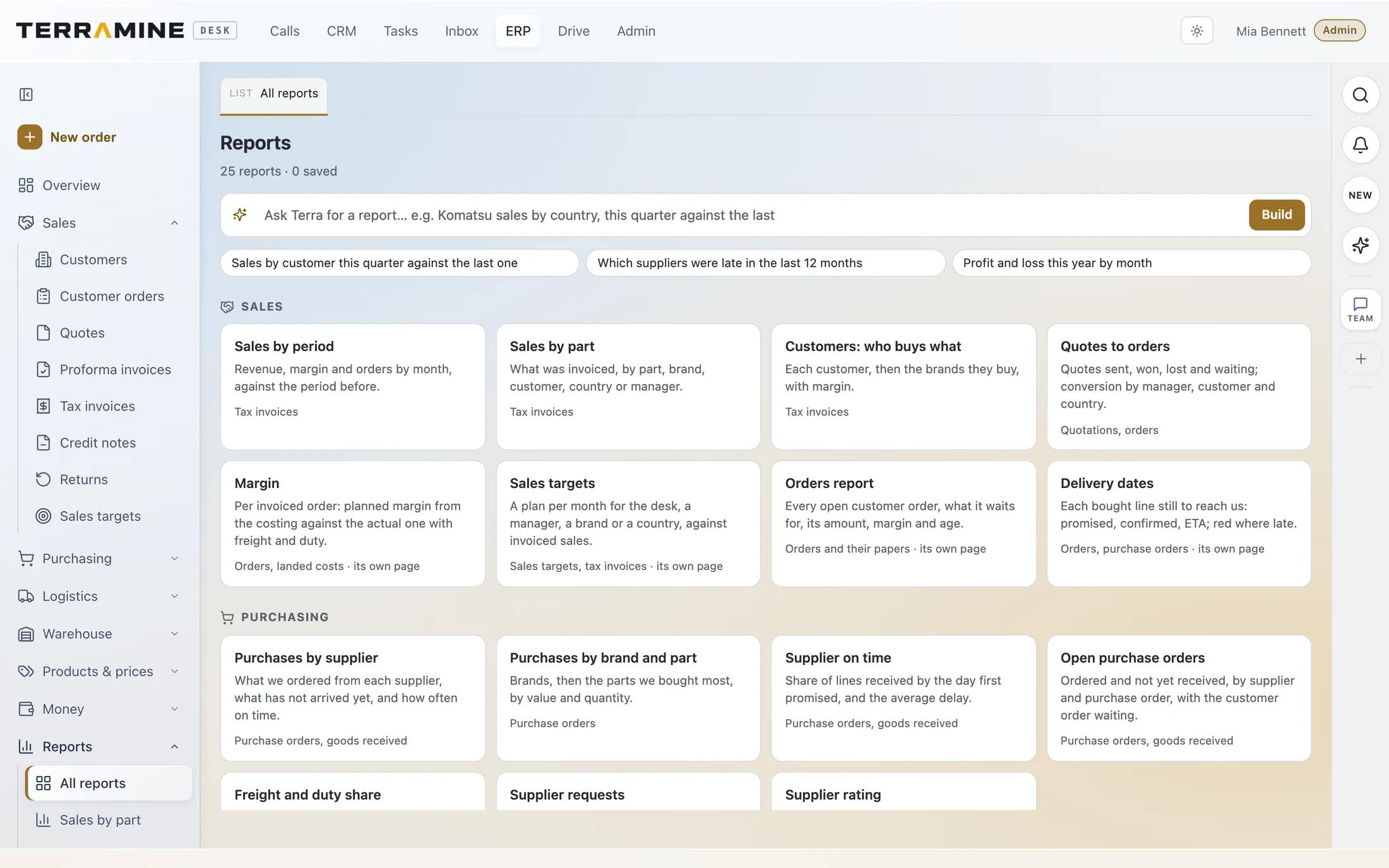
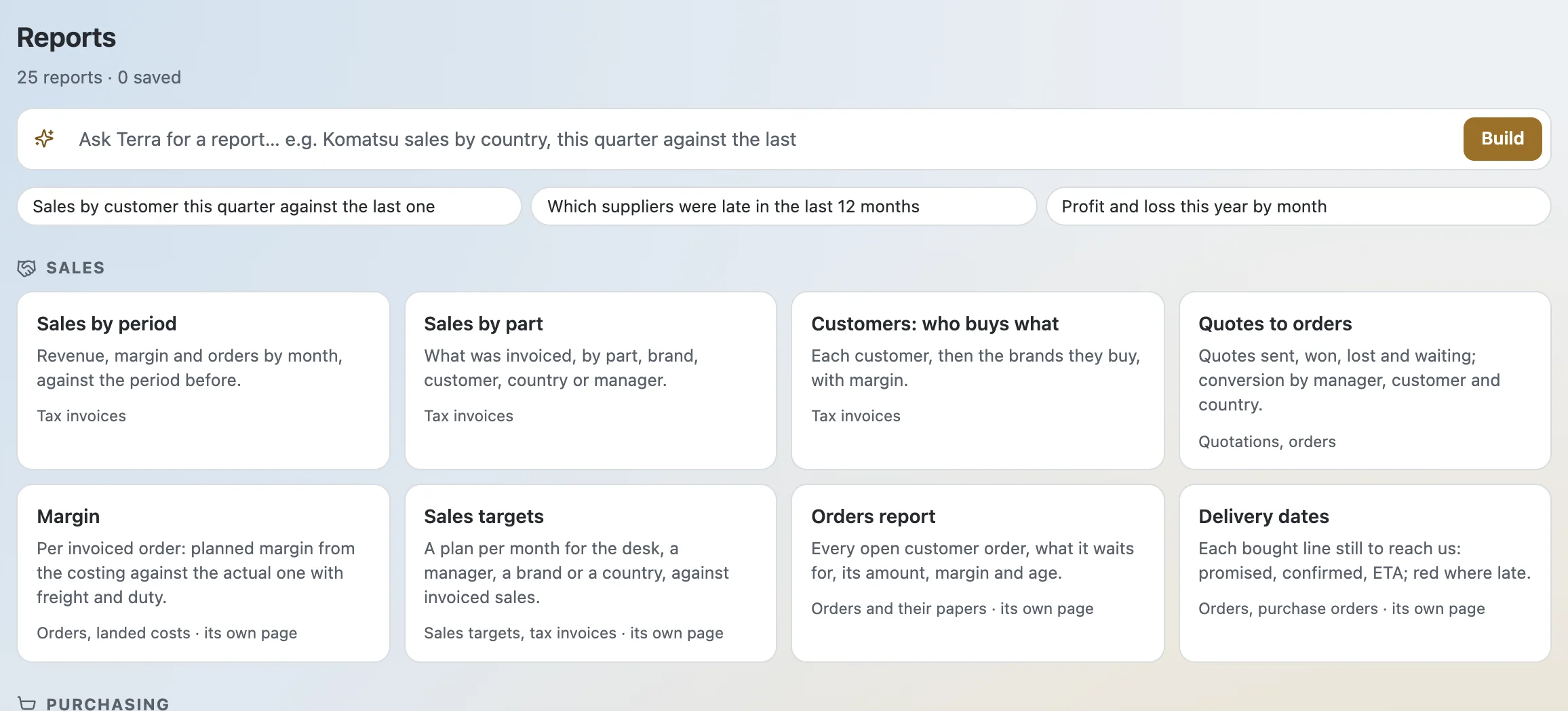
Sales, purchasing, finance and stock reports counted from your own documents: sales by period and by part, margin, quotes to orders, purchases by supplier, on-time delivery. Ask for a report in words and the assistant sets it up.

  • Rows, columns, filters and the period before beside it
  • Saved reports, shared with the team
  • Emailed on a schedule as Excel, PDF or CSV
  • Reports follow each role's access rights
ERP reports library in Terramine Desk with an ask-for-a-report line and cards for sales by period, sales by part, margin, sales targets and delivery dates
The report library: ask for a report or pick one
Work through conversation

Your workspace, one conversation away.

Chat with Terramine Desk to find information, understand what's happening and get work done across CRM, calls, email, orders and tasks.

Built-in tools connect the AI to your workspace records and actions. Ask in your own words: the assistant can look up information, bring the context together and prepare changes for your approval.

Review proposed plans before confirming. Small edits to the open record can apply immediately; enabled automation follows its configured rules.

Discuss your workflow

What you can ask

  • Read this enquiry and prepare the order lines.
  • Which suppliers cover the items in this order?
  • Read this supplier quotation into the request.
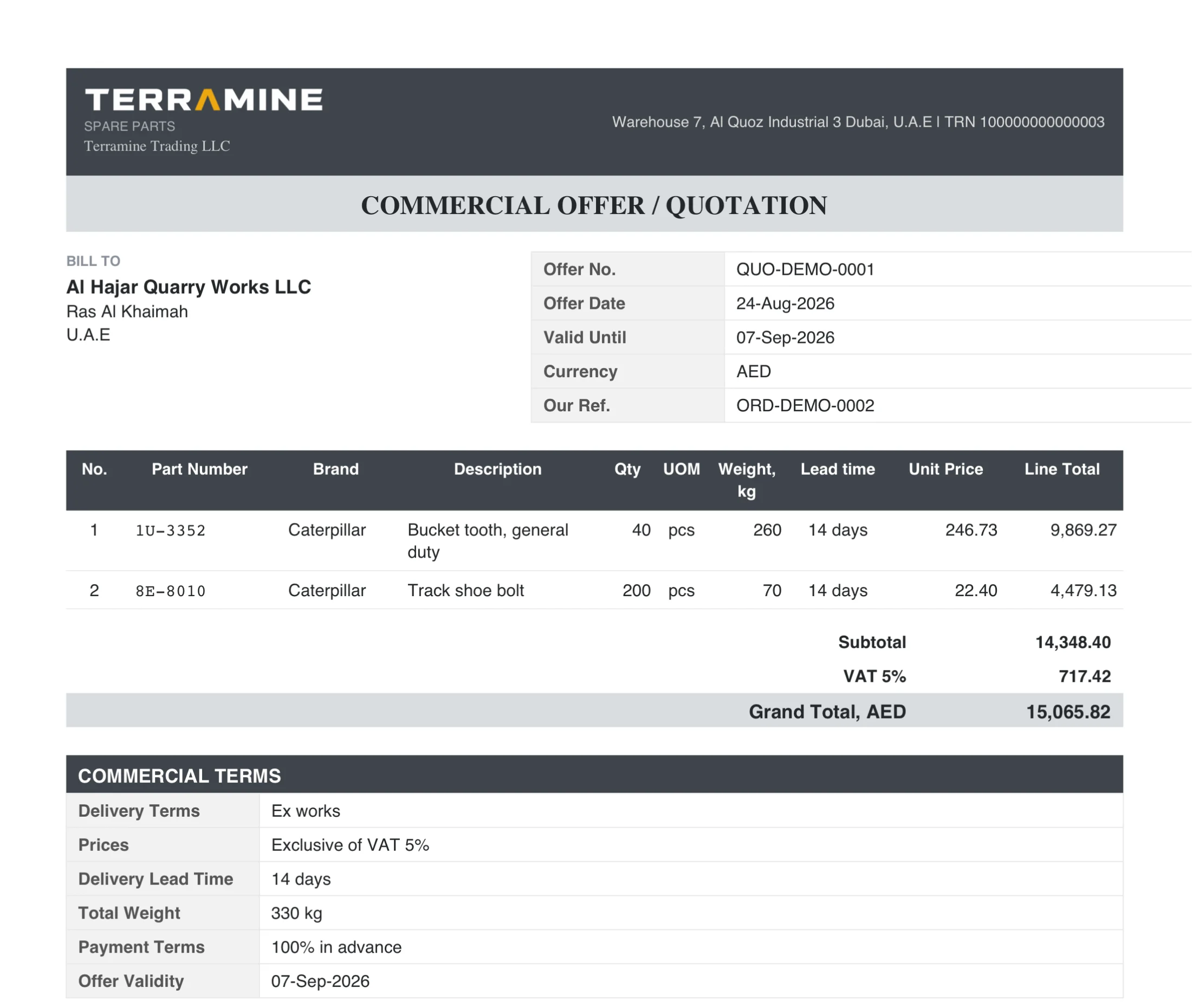
  • Prepare a customer quotation for my review.

Ask Desk

Fictional sample data · choose a conversation to explore.

Read this enquiry and prepare the order lines.

Terramine Desk

The sample enquiry from Aster Equipment requests two filter elements and one seal kit. I can prepare these as order lines while keeping the customer's original part numbers and quantities.

Review the extracted part numbers and quantities before applying the changes. A fictional example: no order is created here.

Sample context: Customer email · Enquiry attachment

Explore the example enquiry
Example from the interactive demo

Follow an enquiry through to a quotation.

Explore a fictional customer order: review the requested parts, change a quantity, compare supplier lead times and prepare a quotation. The guided demo shows the order workflow; Ask Desk above illustrates AI assistance with sample conversations.

Explore the example order

Less retyping. More time to review the deal.

01

Read enquiries and attachments

Upload a PDF, spreadsheet or photo, or paste the customer's message. AI extracts requested part numbers, descriptions and quantities so your team can review the order lines.

02

Match supplier replies to the request

Read a supplier's quotation into the supplier request it answers. AI proposes prices, quantities, lead times and terms against the requested rows, with questions where the answer is unclear.

03

Capture the details that matter in spare parts

Identify the offered brand, original or aftermarket quality, and new, used or remanufactured condition when stated. Keep documented alternatives and cross-references visible for review.

04

Find suppliers for the requested items

Use catalogue matches and loaded price lists to find the suppliers who cover the order. Ask AI to prepare supplier requests with an Excel sheet attached, then approve before sending.

05

Ask questions and prepare actions

Ask Desk about order status, stock, supplier prices or catalogue alternatives. Request new order lines, changes to an order or a quotation, and review the proposed actions before applying them.

06

Keep the customer's request in view

Move between the order, customer record, calls and email. The original conversation helps your team check requirements and follow through without rebuilding the context.

07

Long enquiries, whole

An enquiry of up to 300 lines comes into a draft order from a spreadsheet, PDF, photo or email text, and the supplier request and the supplier's answer carry all of them.

08

Two supplier offers, one order

Use two supplier requests to cost one order, each position bought from one of them. Where both priced a position, the landed costs are compared with a recommendation before anything is ordered.

09

Autopilot on each order

Each order shows whether its autopilot is on, off or needs you. When on, it asks suppliers, reads the answers, costs the order and prepares the quotation; a partial supplier answer is quoted for what was offered, and the rest is named. Your team approves before the quotation is sent.

10

Read the papers that follow an order

Confirmations, delay notices, packing lists, bills, payment advices and contracts arrive by email. AI reads each one into a proposal against the order, purchase order or card it concerns, and your team applies it.

11

Stock, labels and reorder

Transfers between warehouses with goods in transit, QR labels read by a phone camera, reorder points worked out from what went out, and how long each part has sat on the shelf.

12

Connect the system that keeps your books

Write customers, orders and invoices into Zoho Books, or in beta into Business Central, Odoo, SAP Business One or NetSuite, as drafts with one owner per record. An open API with scoped keys and signed webhooks covers the rest.

13

Reports you set up yourself

Sales, purchasing, finance and stock reports in one library: choose rows, columns and the period, save the report and have it emailed on a schedule.

14

Repeat enquiries and offer history

An enquiry that repeats one already with the supplier is not sent again. Fill from history prices empty lines from the newest supplier offer of the last year.

Where it fits

The order workflow behind the AI

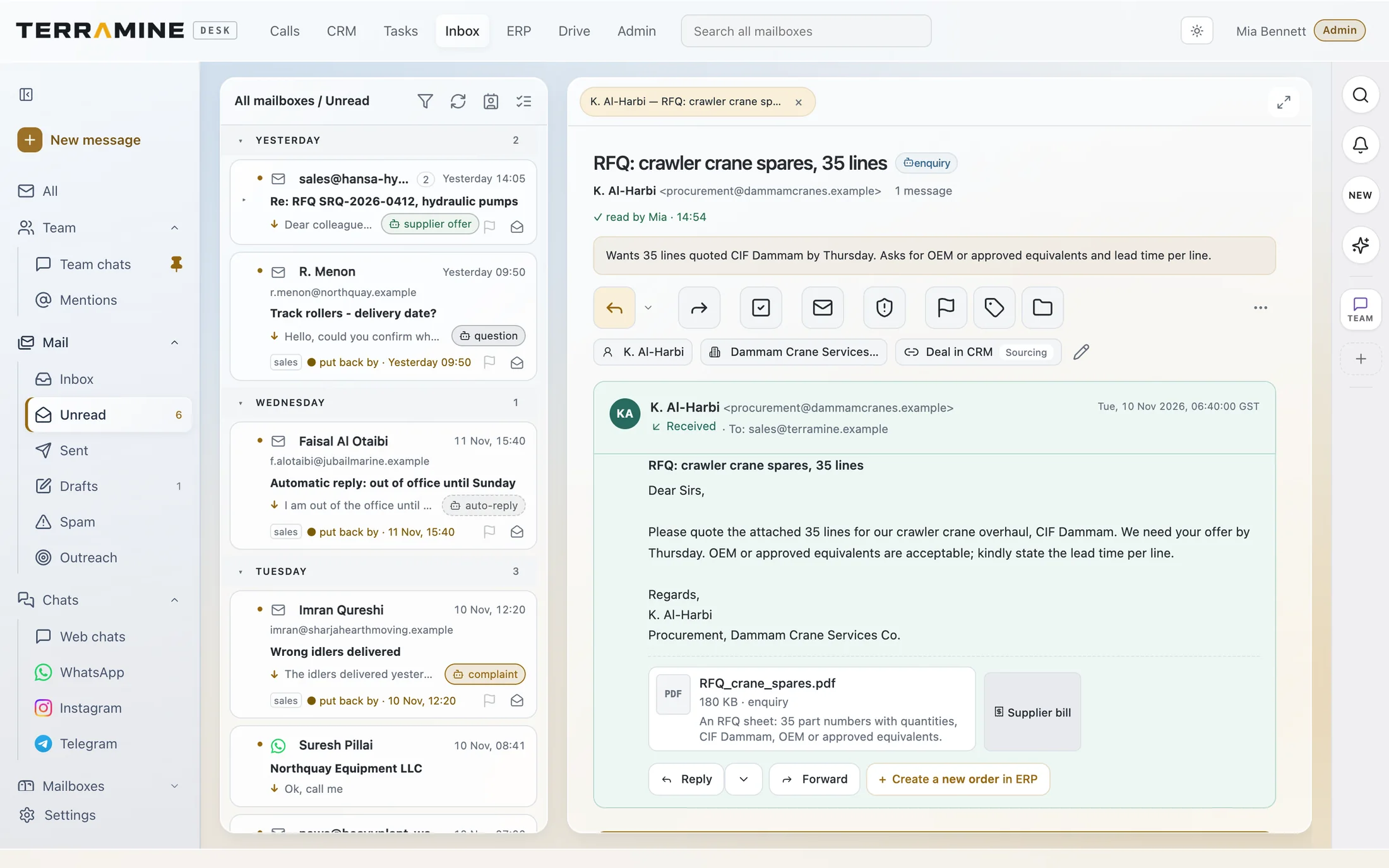
Keep customer orders, supplier requests, quotations, purchasing, stock and delivery documents in one trading workspace. Review costs, currencies, logistics and margins alongside the source enquiry. Calls, email and CRM keep the customer context connected throughout. Invoices, payments, reminders and statements sit in the same place, and the desk writes into the accounting or ERP system you already keep: Zoho Books, and in beta Microsoft Dynamics 365 Business Central, Odoo, SAP Business One and NetSuite.

Before you try it

Questions about ERP and order management

What can AI do in the ERP workspace?

AI can read customer enquiries and supplier quotations, extract line items, help find suppliers and prepare order changes. Through Ask Desk, you can ask about orders, catalogue parts, stock and sourcing, then review the proposed actions before applying them.

Which documents can I upload?

The enquiry reader supports PDFs, photos, Excel spreadsheets, Word documents and text such as a pasted email. Review extracted part numbers, quantities and terms before using them in an order.

How does AI handle supplier quotations?

It reads the supplier's answer and matches each value to a row of the supplier request. Prices, quantities, lead times and any alternatives offered are shown for review. Anything unclear is raised as a question rather than accepted silently.

Will AI send supplier requests or change orders without approval?

No. Ask Desk shows proposed order changes for your review. A supplier request is sent only after you confirm it. Reading a supplier's answer produces proposals; you decide which values to accept.

Can AI find alternative parts?

Ask Desk can look up alternatives already recorded in your catalogue, and the quotation reader captures cross-references a supplier states explicitly. Your team confirms suitability: a similar part number alone does not make two parts compatible.

Can AI read the papers that follow an order?

Yes. Supplier confirmations, bills, packing lists, delay notices and price lists, a customer's purchase order, payment advices, contracts, customs entries and buyer details are read from email into proposals in one queue on the ERP Overview. A person applies each one, and the readers that would change records start switched off in Autopilot.

What kind of ERP is Terramine Desk?

A trading ERP: enquiries, sourcing, quotations, purchasing, stock, delivery documents, invoices, payments and statements, connected to calls, email, CRM and tasks. It writes into the accounting or ERP system you already keep — Zoho Books, and in beta Business Central, Odoo, SAP Business One and NetSuite — as drafts unless you allow exact matches to post. Payroll and statutory filing stay in your accounting system.

Is this only for spare parts?

No. The sample follows a parts enquiry because part numbers, quantities and lead times make it concrete. A pilot should test your own products and trading workflow.

Are the demo prices actual offers?

No. All parts, costs, prices and commercial terms in the demo are illustrative.

Does supplier lead time mean customer delivery time?

No. The demo keeps the onward delivery check visible before the team confirms an arrival date.

Your process comes next

Start with one workflow.
Connect the work from there.

Explore the demo Discuss a pilot